





Creative Bloq Verdict
A brilliant, comfortable productivity mouse. The haptics and Actions Ring reward creatives who’ll map shortcuts, but Options+ takes work, and for most MX Master 3S owners or non-creatives, it’s a marginal upgrade.
Reasons to buy
- +
Comfortable, well-judged weight with real desk presence
- +
Special Edition colourway offers a touch of personality
- +
Haptic feedback adds useful tactile confirmation
- +
Actions Ring speeds up app switching and folder access
- +
MagSpeed scrolling is still class-leading
Reasons to avoid
- -
Needs time in Options+ to get the best from it
- -
Some creative apps need manual setup
- -
Marginal upgrade over the MX Master 3S unless you map shortcuts to the Action Ring
Why you can trust Creative Bloq Our expert reviewers spend hours testing and comparing products and services so you can choose the best for you. Find out more about how we test.
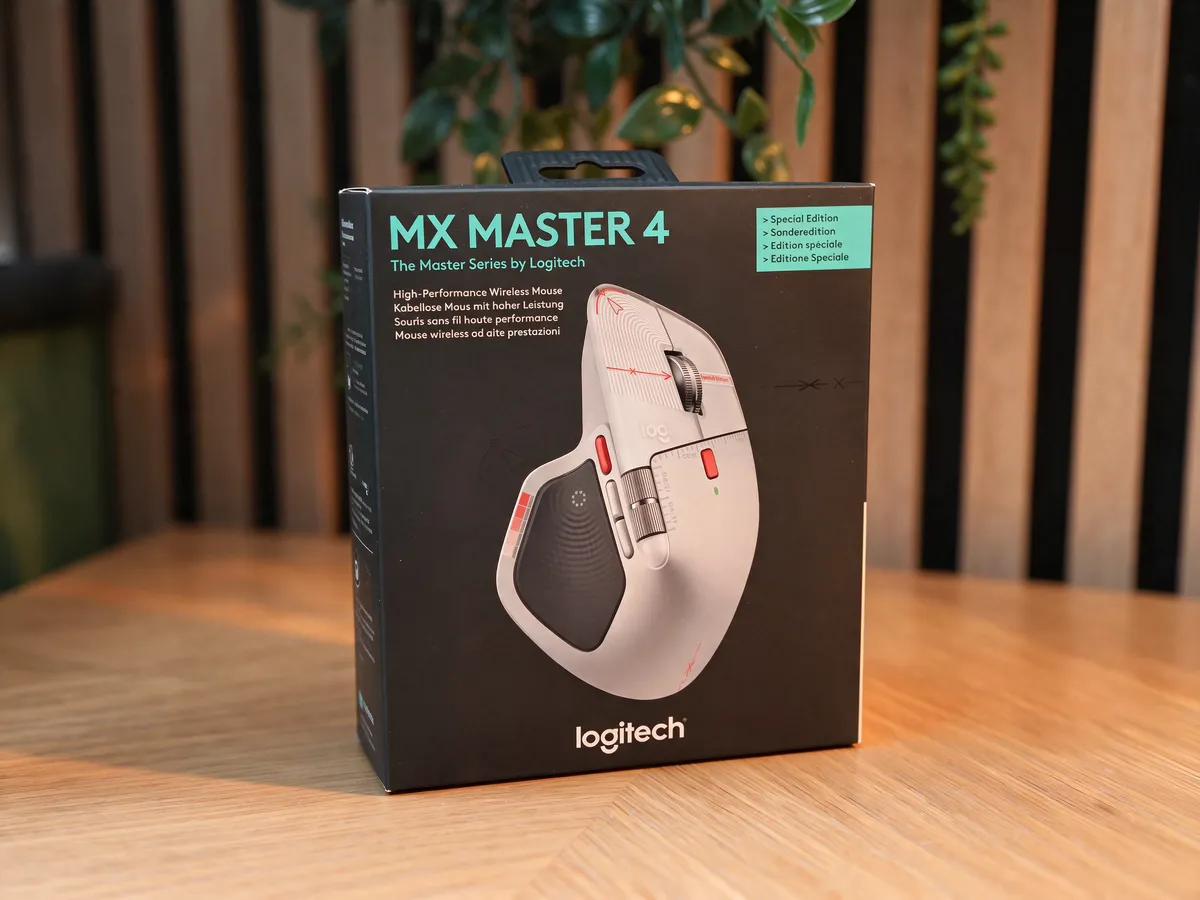
Product: Logitech MX Master 4 (Special Edition)
Price: $119.99 / £119.99
Buttons: 8 + gesture controls
Sensor & Tracking: Darkfield high precision, 200-8000 DPI
Scroll: MagSpeed electromagnetic wheel plus thumb wheel
Weight: 150g
Connectivity: Bluetooth and Logi Bolt receiver
Battery: up to 70 days per charge, USB-C
Software: Logitech Options+ (Windows and macOS)
Best for: creatives, office workers and anyone with long desk sessions
The MX Master 4 Special Edition takes Logitech's excellent black mouse and spruces it up with a new white colourway and red-and-grey accents. Inside, it's the same MX Master 4, and like the 2025 version, it has a tough act to follow. Its predecessor, the MX Master 3S, is already one of the best productivity mice you can buy, so Logitech never intended to reinvent the wheel. Instead, we get more customisation, haptic feedback, and a handful of design tweaks, and in this Special Edition, a more personalised colour choice.
These are all the developments I’d expect from a follow-up to the excellent MX Master 3S, one of the best mice you can buy, but they make this a nicer-looking version of a mouse that was a smart evolution rather than a must-have upgrade, unless, I'd argue, you're a creative; then the Actions Ring becomes a bigger thing than you may expect and is new to MX Master 4, Special Edition or not.
The shape is the same as the MX Master 3S, with its sculpted ergonomic design, deep thumb rest, and plenty of controls to keep your hands off the keyboard. It’s comfortable for long workdays, and the weight is spot on. It has enough heft to feel planted on the desk without feeling clumsy. It’s big, though, and it won’t suit everyone. This is a mouse for your desk, not your laptop bag.
• For more control consider one of the best drawing tablets
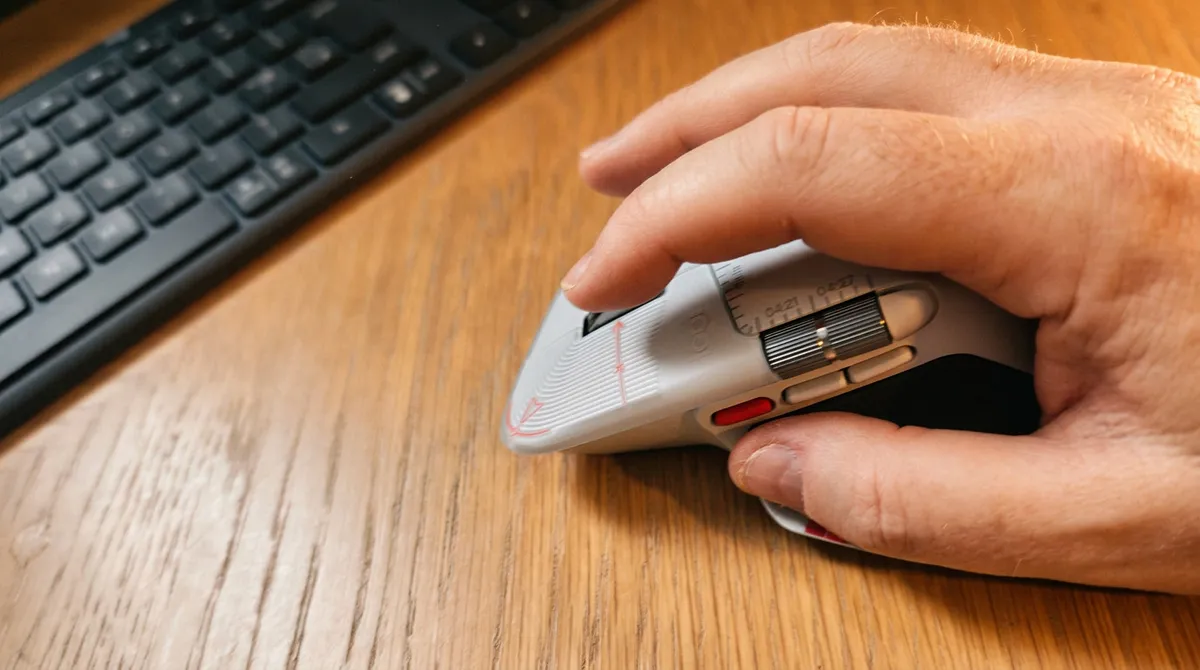
The impressive MagSpeed scroll wheel
The MagSpeed wheel is as good as ever. Flick it, and it free-spins through a long spreadsheet or a 40-page document, then ratchets back to click-by-click scrolling when you need precision. Switching between the two is automatic, which is why it’s so easy to take for granted.
The finish is where things have changed. This is the Special Edition of last year’s MX Master 4 release, so the design changes over the MX Master 3S remain. Logitech has swapped the soft, rubberised coating of older models for something harder, but it’s not slick or glassy. The cover has a nice bit of tooth, and different areas have subtly different textures, so your fingers always know where they are without you looking. It feels different from the old MX Masters. A colleague wasn’t keen on it when they tried [2025’s MX Master 4], but I got used to it quickly, so your mileage may vary, and existing owners may need a few days to adjust.
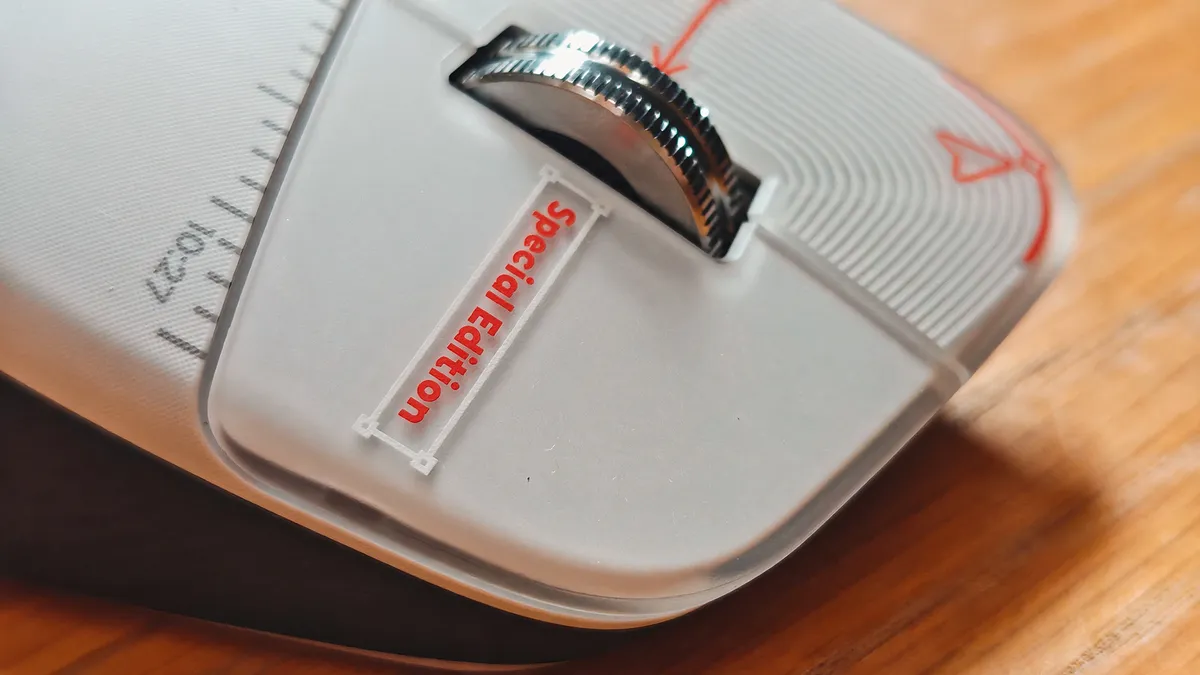
Those alterations aside, the Special Edition replaces flat blacks with a soft grey-white colour and red accents. The dark grey Actions Ring thumb rest pops in this colourway, and I far prefer it to the faceless black PC-mouse aesthetic of the base model. There’s no price difference between black and Special Edition.
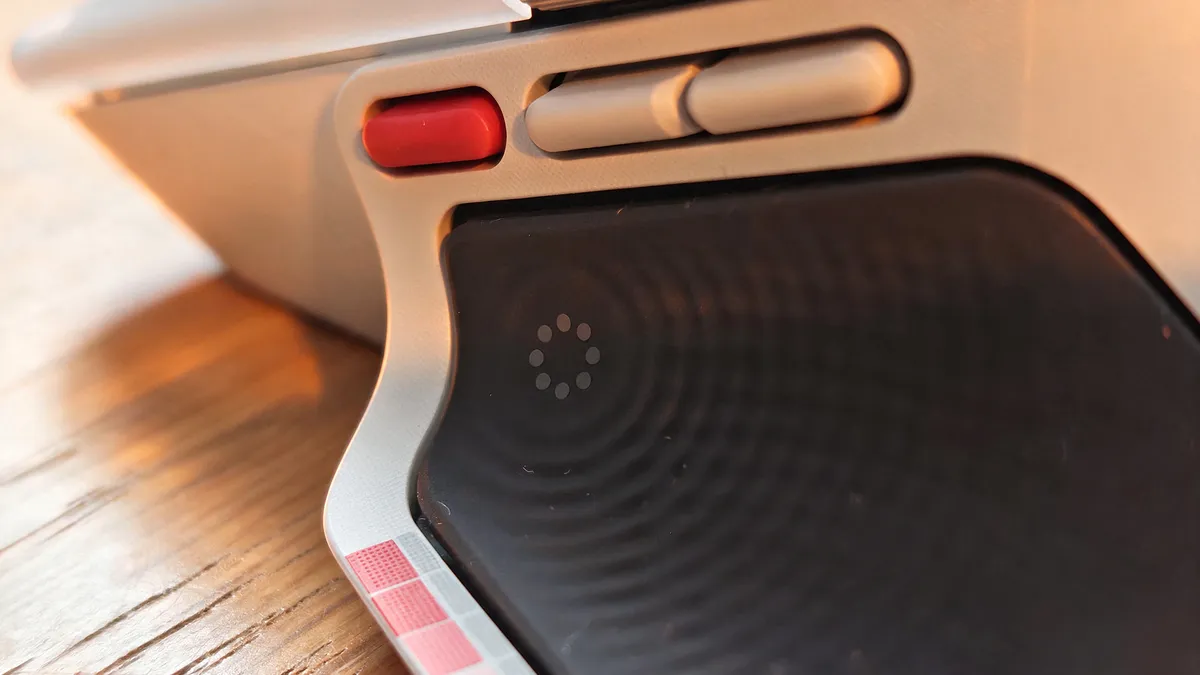
Making use of haptics and the Actions Ring
The thumb rest gets the biggest rethink. It’s usually the most wasted area of a mouse, a bit of plastic to rest your thumb on. Here, it’s the way into the new virtual dial, called the Actions Ring, which makes it feel like part of the design rather than an afterthought.
The haptics are a lovely touch. They kick in when you make a selection and when you open and cycle through the Actions Ring, so I can keep my eyes on the screen, click and scroll, and still feel a little resistance and feedback. This also helps with gesture control, too, if you go as far as needing that kind of input. It’s subtle, but it makes the mouse feel more connected to what you’re doing.
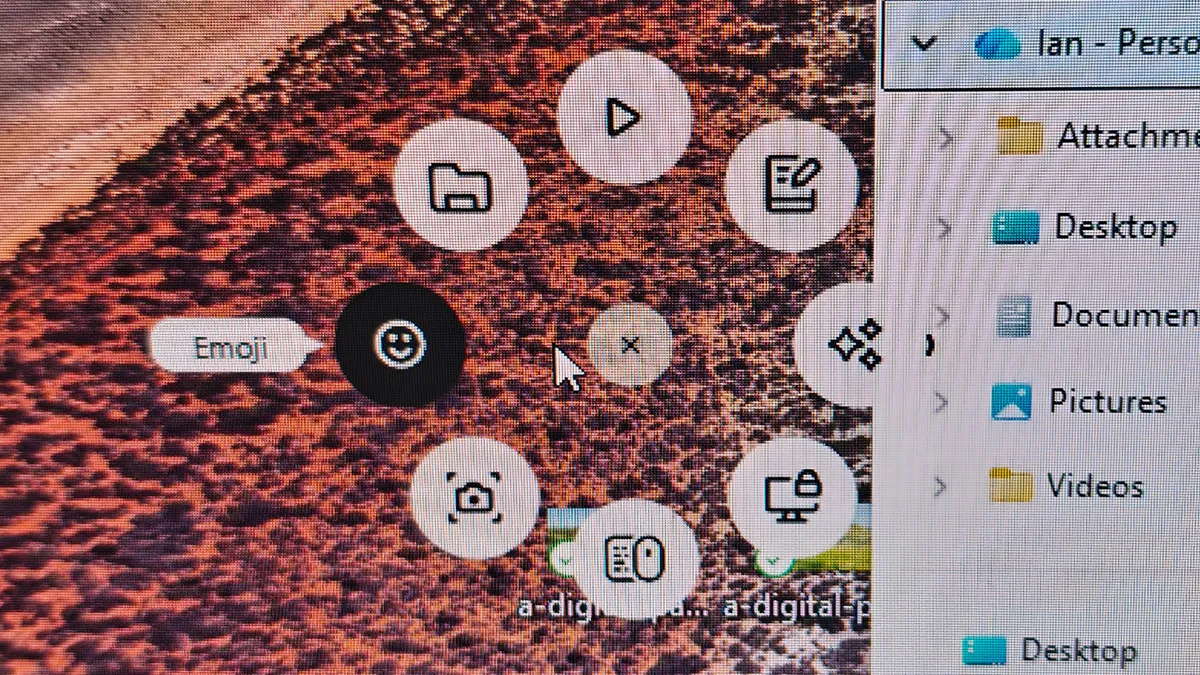
As you may have guessed, the Actions Ring is the real star of the new features. It’s an on-screen dial that expands what the mouse can do, making it easy to open folders or switch between apps without dropping into the Windows menus. You can tailor the ring to the job, from something as basic as Google to Photoshop or DaVinci Resolve. Support isn’t universal, though. The best digital art and design apps like Krita, Affinity Photo and CorelDRAW are covered, but smaller apps like Escape Motions Rebelle aren’t a default option, so you’ll need a workaround: assign function keys in Options+, then match them to the app’s own shortcuts for undo, clear layer or brush toggles. It works, but you need to know your keys or set them up ahead of time.
This also means getting to grips with Options+ and its app features, which is a lot of learning for a mouse. I’d like it to work more without that software running in the background. But if you persevere, it adds real depth and makes the mouse faster to use and more flexible. Once it’s set up, you’ll love it. You can tweak everything from haptic strength to scroll speed, and I’d probably be moaning if I couldn’t fiddle.
The haptics, gestures, and Actions Ring are a step beyond the MX Master 3S, and creatives who map shortcuts to the ring will get the most from this mouse.
MX Master 4 Special Edition vs MX Master 3S: should you upgrade?
So, should you buy the MX Master 4 Special Edition? If you’re coming from a basic mouse, absolutely. The ergonomics, scrolling and customisation make it a brilliant tool for anyone who works at a computer all day, whether in creative apps or simply navigating menus and Google.
If you already own an MX Master 3S, it comes down to how you work. The haptics and Actions Ring are genuinely useful and, for creative apps, a new, easier way to work, so it’s worth it if you’ll map shortcuts to the ring or, like me, hate sorting through Windows menus and would rather one-click into the regular apps and files. For everyone else, they’re not enough to make a perfectly good mouse obsolete.