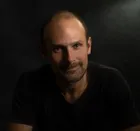
Adobe's just dropped a new AI tool in Photoshop, and it's turning out to be almost as controversial as Nvidia's DLSS 5. Relight is a Generative AI feature added to the desktop version of Photoshop beta that lets you add new interactive, non-destructive lights to an image.
The idea is that you can relight a photoshoot after the event. You can adjust the position of artificial light sources and vary their intensity, colour and amount of diffusion, viewing the results in real time.
Is it a game changer that's going to put light makers out of business and transform retouching... or does it make the subjects of photos look like video game graphics made in Unreal Engine 5?
We just launched Photoshop (beta) Relight 🎉 You can change lighting of your images in real time! pic.twitter.com/T0ZprKUZvTSeptember 28, 2026
I tried Photoshop's new "relight" feature and the result really looks good. I think the manual light painting journey is coming to an end now.What are your thoughts? pic.twitter.com/iLb2hsIqKuSeptember 28, 2026
Photoshop new feature is insane. Lighting work is gonna be so much faster than before pic.twitter.com/ot2k0YlWBBSeptember 29, 2026
If you stuggled like me with lights and shadows in Photoshop new Relight in Photoshop Beta is trully insane. For me it's nice to help out with light direction, I will still go with my own paiting, but with better understading! pic.twitter.com/j8KlfHgZt7September 29, 2026
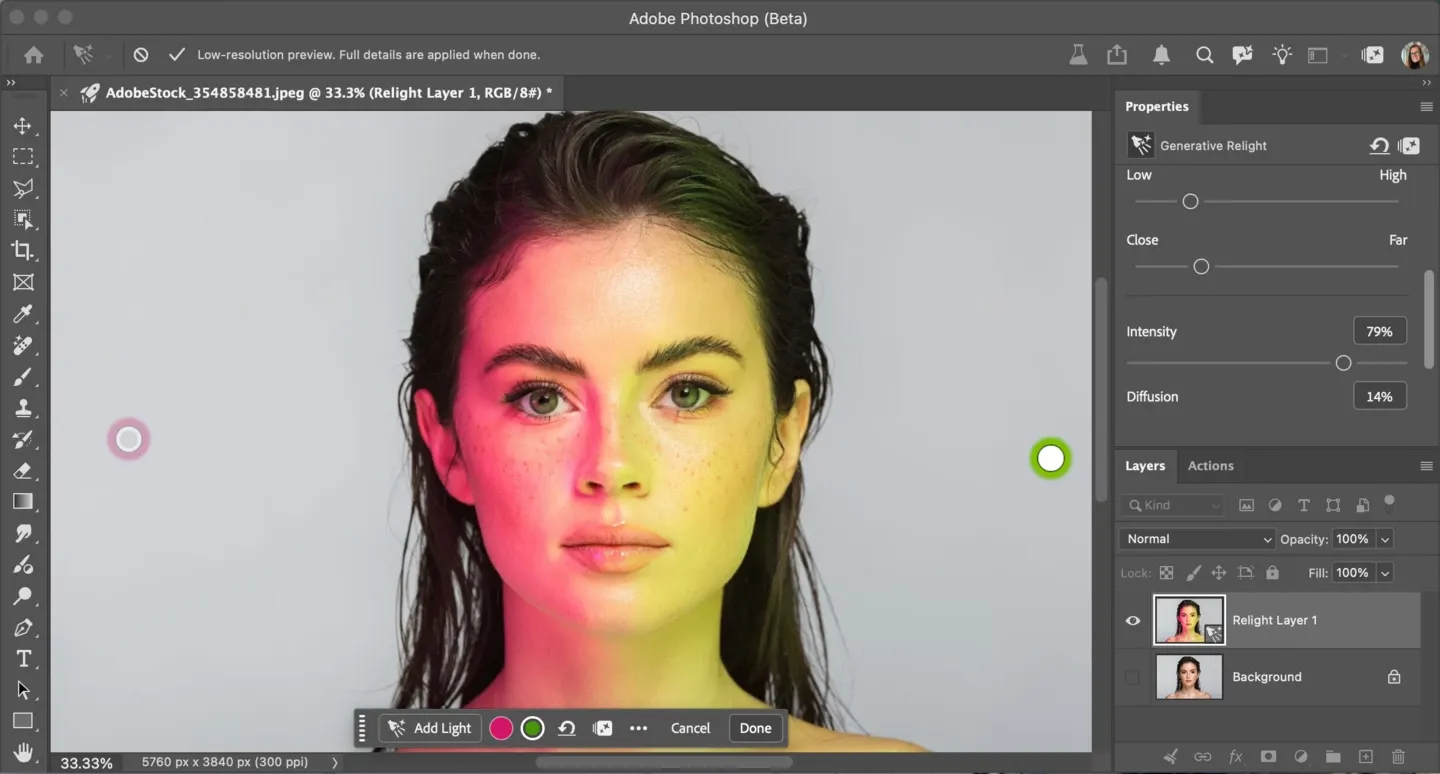
Photoshop's Relight removes the existing lighting from an image and then creates its own using generative AI. You can add up to three artificial light sources and control them individually. Turn them all off, and you have the remaining ambient or original light. Turning each one on or off enables or disables its contribution, just like turning on or off a real light.
People have been sharing early experiments with the tool on social media, and they've been generating some mixed reactions. Some think Relight has the potential to eliminate manual light painting, or at least provide a very good base to start with, massively speeding up the process.
Others aren't impressed with the soft, unnatural-looking results, with smoothed textures seeming to create a look more akin to that of a 3D avatar than a realistically lit portrait. Like other AI editing tools, including Tinder's, Relight also seems to suffer from a tendency to make unintended changes a person's appearance.
That's generating the kind of debate we've seen over Nvidia's DLSS 5 – is it actually generating new art rather than enhancing the original image?
OH MY GOD it just gets worseThey don't actually relight, they just generate a new imagebro on the right looks like an Unreal Engine model (trained on Unreal obv), it changed his haircut and moved his pimple lmaooooooanyway here's a competent relightpic.twitter.com/RJeqz3slt4 https://t.co/kNNsg9zesZSeptember 28, 2026
Original / Photoshop / NKD RelightLo que ha sacado Adobe tiene cosas muy interesantes, no os voy a mentir, pero siguen llegando tarde y a medias. Muy chulo como juguetito para el efecto wow de los que están perdidos con la IA, pero nada que ver con lo que podemos conseguir con… https://t.co/URRSr2rJG5 pic.twitter.com/YPB99URBlpSeptember 29, 2026
Relight's unnatural look could perhaps be toned down if you use it as an adjustment layer and manually blend the results into the image to bring back some of the original texture. We should also remember that Relight has only just been released in beta. It will presumably be improved before full release.
How to use Relight in Photoshop
To use Relight in Photoshop, make sure you've updated to the later Beta Build (Version: 27.10.0 202600802.m.3625). With an image open, go to the Layer menu > New Relight layer.
A default white light will be added bang in the centre of the image. You can click and drag it around the canvas inside or outside the image. A 'Relight Layer' is created in the Layer Panel, leaving the original pixels untouched
You can select the circle light icon on the new Relight Contextual Task Bar or Properties panel to adjust the light properties. You can delete lights and/or turn their visibility off using the eye icon and add more lights with the 'Add lights' button. When finished updating, select 'Done' to generate the final relight result at the full input image resolution.
Easy now, the Relight feature costs 30 credits each time the Done button is pressed!