
Finding the best drawing tablet can feel overwhelming, as there are so many options, from simple pen tablets to full pen computers like the iPad. And they're not all just for pros, either. After more than a decade of testing devices and talking to working artists, we’ve boiled it down to the key differences, so you can pick the right tablet for your workflow.
First, know the types: pen tablets are basic, screenless surfaces that control your computer. Pen displays feature a built-in screen, allowing you to draw directly on the device. And pen computers run art apps natively, giving you a fully self-contained touchscreen; the iPad Pro is an obvious choice here, but Android alternatives to iPad from drawing tablet specialists like Wacom and XPPen are competitive for artwork.
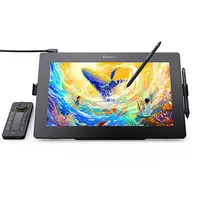
Below, I break down the best tablets across all formats, comparing design, build, performance, and software. I'd also recommend skipping to the Today's Deals section for some bargains on recommended tablets. For example, the Kamvas Pro 24 (Gen 3) is now $1,399 at Amazon; it’s among the best-value large 4K pen displays I've used. We also cover the best budget drawing tablet options and point you to our wider stylus tablet guide for more choices.

Ian is Creative Bloq's digital art and 3D editor. He has years of experience testing, reviewing and writing about creative hardware and software, from digital art and illustration to 3D and animation. He personally tests many of the drawing tablets we get in for review, and also curates and edits the work of digital artists who contribute to the site.
The best drawing tablets in full
Why you can trust Creative Bloq Our expert reviewers spend hours testing and comparing products and services so you can choose the best for you. Find out more about how we test.
The best pen tablet overall


30-second review: Wacom is the longstanding leader in drawing tablets, known for reliability, quality and compatibility with every app you can think of. The Intuos Pro range comprises the best of its pen tablets, available in three sizes: small, medium and large. Updated for 2025, the new models shift the dials and buttons from the side to the top of the tablet.
Design: Some pen tablets can feel a bit cheap and plasticky, but this drawing tablet is solid to the touch despite being very slim, which makes it easy to stow. The new tapered design runs from just 4mm to 7cm. It's made from a black anodised aluminium and fibreglass composite resin, which gives it a sturdy feel while remaining flexible enough to flex when you push into it. Of the three sizes, we tested the Medium and recommend either this or the Large to allow a nice sweep as you draw.
Unlike the Xencelabs Pen Tablet below, which has separate keys, Wacom takes the more traditional route of including the Express Keys built into the device. On previous models, they were on one side, but they've now been moved to the top. That might seem less convenient initially since there's further to reach, but I found them comfortable to access with my free hand, irrespective of which hand I used for the stylus.
Features: The included Wacom Pro Pen 3 is one of the best styluses around, and with 8,192 levels of pressure sensitivity gets you as close as you can get to using an actual pen. It has a slightly lower initial activation force than that of competitors (1g compared to 3g on the Xencelabs tablet below), which can be beneficial for very light strokes.
It's worth noting that, unlike the Xencelabs, this only comes with one stylus, Wacom's traditional 'fat' design. If you prefer the slimmer Apple Pencil style of pen, then you can buy one separately, and Wacom is one of the best-supported brands for alternative styluses. It has a broad ecosystem of alternative pens and Texture Sheets, which can give your drawing surface a different feel.
The keys are fully customisable, as is the stylus, and the tablet supports multitouch for using gesture controls and stylus together for navigating and manipulating your artwork, which cheaper tablets often lack. The Intuos Pro models also have Bluetooth for wireless use (the cheaper standard Wacom Intuos range doesn't), and they come with everything you need in the box.
Finally, it's worth mentioning Wacom's excellent calibration software and compatibility with nearly every digital art and 3D app. It's very easy to set up and customise, which is another reason these tablets are so popular with artists.
Price: The Wacom Intuos Pro Medium costs $379.95 / £339.98. That's around $100 more than the Xencelabs Medium Bundle (see below), which I think is a very strong competitor. Whether it's worth that extra cost will depend if you need the precision. of the lower pen activation force and the convenience of multitouch support. For pro artists, I would recommend going for this highly compatible, industry-proven tablet, but beginners and enthusiasts could save some money with the Xencelabs option below.
Read the full Wacom Intuos Pro review
Attributes |
Notes |
Rating |
|---|---|---|
Design |
Built to last, convenient layout. |
★★★★ |
Performance |
Very accurate and compatible with all software. |
★★★★★ |
Features |
Handy customisable Express Keys and dials, multitouch and an excellent stylus and software. |
★★★★★ |
Price |
The most expensive pen tablet I've tested, but a Wacom will last a long time. |
★★★★ |
The best value pen tablet


30-second review: Xencelabs are relative newcomers to the market but boast a number of Wacom alumni who have brought their tablet design nous to the brand. The Xencelabs Pen Tablet Medium strikes an optimal balance of features, design, portability, and price, and, in our opinion, it's the best value drawing tablet and the best drawing tablet for beginners and enthusiasts who may not be using it for long sessions every day.
Design: One of the most important aspects of a drawing tablet is the texture of its drawing surface, and the Xencelabs Pen Tablet Medium gets it bang on. As our reviewer noted in their five-star review of the tablet, the level of 'bite' against the stylus feels exactly right, making the tablet immensely satisfying to draw on. Having tried it myself, I agree with our reviewer: it just feels good to use.
The design removes the Quick Keys from the device itself and puts them in a Bluetooth remote unit included in the bundle (the tablet's also available on its own without the keys, but I would recommend getting them). The upshot is that the Xencelabs Pen Tablet Medium devotes all of its space to a drawing area. Some may find this new approach awkward, in which case the more traditional Wacom Intuos Pro at No. 2 on my list is a better choice, but it has the benefit of letting you place the keys wherever you want on your desk.
Features: The pressure and 60-degree tilt sensitivity of this tablet and stylus are also practically pitch-perfect, and having two pens bundled in is also very welcome, as you can set them up for different uses (for example one for line art and one for digital painting, or one for 3D and the other for 2D) to enable quick swapping and a smooth workflow.
Stylus pen pressure is 8,192, which is now standard on higher-end devices, although some, like the XP-Pen tablets on my list, go up to 16K pressure levels. The Quick Key remote features eight programmable buttons and an OLED display for ease of use. Finally, the calibration and setup interface of the Xencelabs' app is my favourite outside of Wacom, and this tablet works with all the leading digital art and design software, including Photoshop, ZBrush and Corel Painter.
Price: The Xencelabs Pen Tablet Medium costs $249.99 / £249.90 with two styluses and a pen case, but my recommendation would be the Xencelabs Pen Tablet Medium Bundle for $329.99 / £289.90. This includes the Quick Key remote, which is essential for a smooth workflow, as it provides the shortcuts you need to avoid using your computer keyboard. It's a great value, when you consider that the Wacom Intuos Pro Medium (above) is $379.95 / £329.99.
Read the full Xencelabs Pen Tablet Medium review
Attributes |
Notes |
Rating |
|---|---|---|
Design |
Solid, comfy and a lovely 'tooth' feel. |
★★★★★ |
Performance |
Delivers an accurate and precise experience. |
★★★★★ |
Features |
Quick Key remote, two stylus and case. |
★★★★★ |
Price |
An excellent package at a good price. |
★★★★★ |

"The Xencelabs Pen Tablet is the ideal choice for illustrators, digital painters and photographers who want a reliable, solidly built piece of equipment that's easily portable, wireless and pretty much flawless in performance."
Best budget drawing tablet


30-second review: The Ugee M908 is a surprisingly capable budget drawing tablet, perfect for beginners or hobbyists who want a full-size active area without the premium price. Lightweight, responsive, and packed with features like a highly sensitive stylus and shortcut keys, it’s a no-nonsense entry point into digital art. There are minor quirks, like a slight lag on re-hover and a ridge along the edges, but for under $50, it punches way above its weight.
Design: At 495 g with a 10x6.25-inch active area, the M908 is compact but feels solid. The plastic build is sturdy, although fingerprints show up quickly. Its bevelled edges make long drawing sessions more comfortable, but a subtle ridge along the sides may bother some users. The stylus is lightweight and easy to hold, featuring a springy nib that mimics a ballpoint pen. Eight shortcut keys and a zoom wheel are well-placed and intuitive, a rare bonus for a tablet at this price.
Features: Ugee doesn’t cut corners on essentials. The PH23 stylus is battery-free, boasting a solid 8,192 levels of pressure sensitivity and 60 degrees of tilt support, features usually found on more expensive devices. Two side buttons let you assign quick actions, such as erase or right-click. Eight customizable shortcut keys and a zoom wheel give extra workflow efficiency. The tablet also supports Windows/Mac and Android, although drawing on a phone can feel a little cramped. Overall, it delivers a smooth, responsive experience for sketching, inking, and even light painting.
Price: Priced around $49/£40, the M908 is one of the most affordable full-size graphics tablets on the market. It doesn’t have a display or wireless connectivity, but those are understandable omissions at this price point. For beginners, hobbyists, or anyone wanting a reliable secondary tablet, it’s hard to beat. The combination of a highly responsive pen, generous active area, and workflow-friendly shortcut keys makes the M908 a standout budget option. For anyone starting digital art or needing a portable drawing surface, it’s an excellent value.
Read the full Ugee M908 review
Attributes |
Notes |
Rating |
|---|---|---|
Design |
Small, lightweight and neat, an ideal starter or travel tablet. |
★★★★ |
Performance |
Good performance and a nice stylus for this budget. |
★★★★ |
Features |
No Bluetooth but has 8 customisable keys. |
★★★ |
Price |
Affordable, well made and great value. |
★★★★★ |

"With its excellent responsiveness, smart design, and well-thought-out size-to-weight ratio, Ugee’s M908 offers versatility for both travel and a traditional work setup. A lack of wireless support is the only major issue."
The best pen display overall


30-second review: The Wacom Cintiq Pro 27 is huge, gorgeous, expensive as hell, and honestly perfect if you’ve got the desk space and the budget. Unlike some on this list, the Cintiq Pro 27 features ergonomically placed Quick Keys on the frame, sitting behind the display. The screen is 4K, the colour is fantastic, and the Pro Pen 3 feels lovely – it’s smooth and accurate, you can tilt, and pressure sensitivity works like a dream. But it’s heavy, you need a proper stand (for my review, Wacom packaged in the Stand), and of course, it’s very pricey, but if you’re a professional or just super serious about your art, it’s impossible to beat for sheer drawing experience, design, and build quality (it'll last years).
Design: This pen display is solid, heavy and reassuring. The stand Wacom includes (if you pick the bundle) is decent, but honestly, you probably want the adjustable arm for more flexibility, but that bundle costs more. The 27-inch screen is huge and features multi-touch controls, but it feels neater than some large tablets, especially with the stand fixed. You’ve got room for your canvas, your palettes, your reference images, everything, without feeling cramped. The etched glass gives the pen a nice little drag, making it feel more like paper. It’s a luxury tablet that's beautifully designed with less of the fuss that cheaper tablets come with, and you can tell the second you pick it up.
Features: The screen is 4K, bright, and colourful, and it covers Adobe RGB, P3, and sRGB you’ll ever need. The Pro Pen 3 is incredible, smooth, lag-free, tilt works perfectly, and pressure is spot-on. Touch can be toggled on and off manually, too. The size and resolution mean you can see all the details without squinting or constantly zooming in and out. Basically, it’s the kind of thing that makes working feel effortless; you just open your app and draw (Wacom has the best drivers I've used, which makes a difference).
Price: So, the price… these start from $3,499 / £3,249 and go up depending on the stand bundle, which is a lot, but this is the pro-level display, and you’re paying for reliability, build quality, fantastic pen performance, and that massive colour-accurate screen. More so, you're getting Wacom's impressive drivers that work with everything and are super-stable. You can get the cheaper 27-inch alternative from XPPen (below), and it's also very good, but if you’re serious about your art and can accept the price, the Cintiq Pro 27 is a wonderful pen display, and it will last you forever (I'm still using Wacom tablets from 10 years ago).
My full Wacom Cintiq Pro 27 review is in progress
Attributes |
Notes |
Rating |
|---|---|---|
Design |
Solid build and neat design; touch control and on frame Quick Keys |
★★★★★ |
Performance |
Peerless stylus performance, drivers and display quality. |
★★★★★ |
Features |
Impeccable 4K UHD display with industry standard colour coverage. |
★★★★★ |
Price |
Okay, it's very expensive… but you'll never buy another pen display for years. |
★★★★ |
"You can't beat Wacom on build and performance, and this industry-standard large pen display nails all of its goals, and I love the ergonomic on-frame Quick Keys that sit at the rear of the display."
The best value large pen display


30‑second review: The XPPen Artist Pro 27 (Gen 2) is a massive 27‑inch 4K creative canvas that finally gives you all the space you want for big sweeping strokes and detailed work. Yes, it’s bulky and feels larger in design than the Wacom Cintiq Pro 27 above due to its wide bezels, but the bright 4K, 120 Hz screen with excellent colour fidelity means it feels vibrant in use. The dual X3 Pro pens are responsive, boasting 16K pressure levels (you really need to push hard to reach the top end) and tilt support. Multitouch works well, and the shortcut remote and custom keys make working smooth, though I prefer Wacom's on-frame design. Overall XPPen has really closed much of the gap on high‑end rivals without the hefty price tag – this is big, bright, accurate, responsive and, for what it offers, pretty good value.
Design: It’s got that premium size and weight, you feel the scale of it as soon as you unbox it, and the build feels robust and solid. The etched anti‑glare glass looks great and cuts down reflection while giving a natural feel, there’s a stand with adjustable tilt that keeps it stable at comfortable angles (but it's not as high and adjustable as the Wacom stand above); there’s room for multitouch and gesture control, XPPen bundles two different pens and even a handy colour calibrator and Quick Keys remote so you don’t feel short‑changed in the accessories department, the menus and physical controls don’t feel as luxury as Wacom but everything just works and feels thought‑out.
Features: That 26.9‑inch 4K panel with a 120 Hz refresh really does feel slick when you’re zooming and panning across big files, it hits wide gamuts like 99 % Adobe RGB and 97 % DCI‑P3 with Calman‑verified accuracy so colours look true and consistent, the dual X3 Pro pens with 16,384 pressure levels feel natural and instantaneous, parallax is low and tilt support makes shading feel intuitive, multitouch supports pinch‑to‑zoom/rotate, etc. without a hitch. The Quick Keys remote and dial means you’ve always got shortcuts close at hand, and most creative apps just work nicely with this setup, though some niche apps need a bit of tweaking (I had some issues with Rebelle and the touch controls).
Price: It isn’t cheap, at $1,899 / £1,699, but for a pro‑grade 27‑inch 4K 120 Hz pen display with colour calibration tools and dual styluses included, that’s a compelling package versus rivals; the hardware and performance here feel closer to the big‑name flagship tier of Wacom than to budget alternatives, and while drivers and software aren’t quite as deep as the most expensive competition (above), you get a full‑blown creative powerhouse for what it costs.
Read our XPPen Artist Pro 27 (Gen 2) review for more
Attributes |
Notes |
Rating |
|---|---|---|
Design |
Solid, well made and feature-packed but it does feel bulky. No on-frame Quick Keys. |
★★★★ |
Performance |
Accurate pen response and excellent colour coverage. Niche apps not supported. |
★★★★ |
Features |
A good Quick Key remote, 4K at 120Hz and excellent stylus. |
★★★★★ |
Price |
Great value for the features, build, size, and performance. |
★★★★★ |
"The XPPen Artist Pro 27 (Gen 2) is well built, thoughtfully designed, and anchored by an excellent 4K, 120Hz display that makes everyday drawing feel smooth and responsive."
The best value pen display


30-second review: The Huion Kamvas 22 (Gen 3) feels like Huion doubling down on what it does best, delivering a large but not overlly big, affordable pen display that genuinely pushes into territory that used to belong to pricier rivals, and while it’s still very much a mid-range device, the overall experience, from drawing feel to screen quality, is confident enough that it doesn’t feel like a compromise in the way older budget displays sometimes did.
Design: This is a big but not desk-hogging 21.5-inch display, and it leans into that size with a practical, no-nonsense build that feels more refined than previous Huion models, even if it still stops short of the premium finish you’d get from something like a Wacom Cintiq Pro 24. The matte plastic casing is sturdy without being luxurious, and the slimmer bezels help it feel more modern, though you’re still very aware this is a tool designed to stay put rather than move around.
There are no built-in Quick Keys, which might divide opinion, but it keeps the design clean and pushes you towards using a separate remote (not included). The included stand is a welcome addition at this price, offering a solid range of angles and enough stability to keep the screen from wobbling while sketching, which is crucial on a display this size. A neat touch is the inclusion of atmospheric LEDs on the rear circling the stand and cable panels; it's a small thing, but it lends the Kamvas 22 (Gen 3) a uniquelt premium feel.
Features: The standout here is the drawing experience, with Huion’s latest pen tech feeling smooth, responsive and impressively natural, with good initial activation and pressure control that makes sketching and line work feel consistent and predictable. It’s not quite at the level of a Wacom Pro Pen 3, but it’s closer than ever, and for most artists, that gap is now negligible.
The 2.5K may sound conservative in a world of 4K and OLED panels, but at 21.5 inches, it actually strikes a decent balance between clarity and performance, with strong out-of-the-box colour and enough accuracy for illustration and design work without immediate calibration. It also has a trump card: the display runs at 90Hz, which is unheard of at this size and this price. Brightness is solid rather than spectacular, but in a typical studio setup, it holds up well.
Price: This is where the Kamvas 22 (Gen 3) really makes its case, landing firmly in that sweet spot where it undercuts premium brands while offering a surprisingly complete experience, and crucially, that includes the stand in the box, which competitors often charge extra for. It’s not the cheapest Huion display, but the jump in size, the 90Hz refresh, and the refinement feel justified, and when you compare it to alternatives like Wacom’s displays, the value becomes very obvious, making this an easy recommendation for artists who want scale without stretching into pro-tier pricing.
Read our full Huion Kamvas 22 (Gen 3) review
Attributes |
Notes |
Rating |
|---|---|---|
Design |
Compact, solid and with a built-in stand, the rear LED is a nice touch. |
★★★★★ |
Performance |
Good stylus performance and a great 22-inch, 90Hz display. |
★★★★ |
Features |
Lacks on-frame Quick Keys and no remote included, but stylus is excellent. |
★★★ |
Price |
Fantastic value for a 2.5K, 90Hz, 22-inch pen display. |
★★★★★ |
"What the Kamvas 22 (Gen 3) proves is that compromises are needed to find a new place in a very crowded market; this pen display offers great features – 2.5K at 22-inches, with 90Hz refresh – in a premium feeling design, but that lack of touch and a packaged Quick Keys remote is the trade-off many will take."
Best budget pen display


30-second review: The Ugee 16 is an affordable pen display that manages to squeeze in some excellent tech for less, including a lead-edge stylus with 16K levels of pressure, a Full HD display and 'virtual Quick Keys' accessed on the display, like the more expensive but outstanding Wacom Movink further down our list.
Design: This is a well-designed pen display with a good feel and some nice touches, such as the on-frame Quick Keys. While many now remove the shortcut keys to a remote, many prefer them on the frame. While the keys and dial are welcome, they don't have the same rubber resistance as a Wacom, and can feel a little plastic-like.
This display has few ports and keeps things neat and tidy, for example, there's no power port as it draws power from your laptop or smartphone. The display feels very smooth, and the Full HD 1080p display, with full lamination and an anti-glare coating, impresses.
Features: This pen display is easy to set up and use, and I've really enjoyed creating digital art on it. It comes with a free metal stand that folds down to a small, marker-pen-like size. Quick Keys and virtual keys are fully customisable. The stylus particularly impresses; Ugee's new U-Pencil features an impressive 16,384 levels of pressure sensitivity, twice as much as Wacom and Xencelabs stylus, but the same as XPPen's new stylus.
There is a Full HD 1920 x 1080 resolution display at 15.4 inches, featuring 143% sRGB and an etched anti-glare covering for a 'toothy' paper-like feel, as well as an anti-glare coating to ensure it can be used in all lighting conditions. The Ugee 16 offers a lot of tech at a lower cost, including a handy stand. For beginners and students, it's an ideal, affordable pen display. It can also be used as a drawing tablet or a second screen.
Price: The Ugee 16 (also known as the Ugee 15.4) costs $199 / £210, which makes it very affordable. Considering it comes with accessories that other brands, such as Wacom, charge extra for, I'd recommend this to students or beginners.
Attributes |
Notes |
Rating |
|---|---|---|
Design |
Slim and has on-body Quick Keys. Can feel 'plastic-y'. |
★★★ |
Performance |
Accurate, easy to use and the display is lovely and smooth. |
★★★★ |
Features |
Quick Keys on the frame and features 'virtual keys'. A 16k levels of pressure. |
★★★★ |
Price |
Some high-spec tech for a lot less. |
★★★★★ |
"The build feels a little flimsy, but the Ugee 16 makes a great first pen display for a hobbyist or beginner, offering a responsive digital drawing experience and an easy set-up for a low price."
Most portable pen display


30-second review: The Movink 13 is Wacom's thinnest and lightest pen display to date, and the first with an OLED display. The portability makes it a great option for working on the move since it takes up little space.
Design: It's hard to overstate just how thin and light the Movink 13 is. We've tested a lot of pen displays, and we were really taken aback. It weighs just 420 grams and is just 4 millimetres thick, widening to 6.5 millimetres to create a soft slope with a slightly wider bezel below the display on the slimmer side.
Our initial concern was that this might make it feel fragile, but the tablet actually feels very solid and well-built, even when we tested whether it would bend. That said, you're still going to want some kind of protective case if you're taking the tablet around with you, both to protect the tablet and to prevent loss of the stylus, and that will cost extra.
Features: Adding even more portability, there's no power cable: it takes power from your laptop via USB-C. There are physical buttons as well as on-screen touch buttons for accessing keyboard shortcuts, which we found to be steamlined approach that does away with the need for a desktop setup.
As for the stylus, I love the slimmed-down Wacom Pro Pen 3 that's included (there's a customisation kit if you prefer the older, fatter design). Small things make a difference, like the slightly longer nylon nib, which lets me see more of the display where it touches. I found brush strokes to be accurate and responsive in my tests.
The nicest thing about the Movink is how easy it is to set up and use. You just plug in and draw. In my full review, I compared it to drawing on an A4 pad. It feels quite liberating if you're used to being stuck at a desk. It could also be compared to using an iPad for drawing (see below), but I found the drawing experience much better.
Price: The Movink targets the middle of the market. It's a lot cheaper than Wacom's Cintiq Pro devices, but it's more expensive than comparable pen displays of this size from other brands. If you want a stand or case, they come separately and add to the cost.
We think the OLED display and super-slim build make it worth the extra cost for those who want a very mobile device, but if you'll mainly be working at a desk, you might prefer to get more screen for your buck with something like the Xencelabs Pen Display 16, further up on our list.
Read the full Wacom Movink 13 review
Attributes |
Notes |
Rating |
|---|---|---|
Design |
Streamlined design makes it feel like drawing on a pad. |
★★★★★ |
Performance |
Great stylus performance. Vibrant colours from the OLED display. |
★★★★ |
Features |
No stand or case included. |
★★★ |
Price |
There are cheaper displays at this size and resolution. |
★★★ |
"Wacom's new slim, mobile drawing display is simply the best in its class: accurate, thin, light and well-made. All it needs is a case."
Best iOS pen computer overall


30-second review: If you want a portable tablet that allows you to draw without connecting to a computer, and one that has the power to even replace a computer, the M5 iPad Pro is your device. It's a lot more than you need for drawing alone, but it has the best display on an iPad and can handle all kinds of creative work, as long as you're happy using iOS apps.
Design: The 2025 iPad Pros have the same slim design as the 2024 M4 models. There are two size options: 11 in and 13 in, and both offer the same features and performance. We found that the thin, light design and premium build make them both ideal mobile art tablets. The 13-inch is preferred by many artists for the extra space for drawing, but the 11-inch version is more comfortable to hold for working away from a desk, for example, on the sofa or while travelling.
Both have an outstanding fingerprint-resistant, fully laminated OLED display. This provides vivid contrast and up to 1,000 nits of brightness (up to 1,600 nits HDR), making it usable outdoors, even in bright sunlight. The display is multi-touch, so you can use gestures along with a stylus. An adaptive refresh rate of 10-120Hz delivers a seamless drawing experience with the Apple Pencil Pro (sold separately) and even makes the tablet a viable option for AAA gaming.
Note that the standard display is glossy and has a 'slippy' feel, which we find makes for a less natural drawing feeling than that on a dedicated drawing tablet. You can pay extra for nano-textured glass for more bite, but it is only available on models with 1TB or 2TB storage, which upping the cost.
Features: The M5 chip is incredibly powerful, and much more powerful than what you really need for drawing alone. That makes the iPad Pro more than artists need for drawing alone, but well worth considering if you also want to edit videos or handle heavy layer-based editing in Photoshop. If you don't need as much power, the M3 iPad Air will be enough, and it's significantly cheaper, starting at $599 / £599, although the screen isn't as vivid or bright.
The Apple Pencil Pro will be an essential add-on for anyone considering either tablet for drawing. We found it to be an excellent update to Apple's stylus. As well as tilt, pressure sensitivity, and palm rejection, it has a handy squeeze gesture that brings up tool menus and a Barrel roll feature for quick brush adjustments. Double-tap lets you hot-swap between functions, further improving workflow.
It's worth noting that the amazing Procreate only works on iPads, and the animation app Procreate Dreams only runs on iPad Pro. There's now also ZBrush for iPad, which expands on the software options for creating art on the iPad Pro.
Price: The cost varies by build, but the starting price for the most modest 11-inch model is $999 / £999. My preferred build for digital art would be the 1TB WiFi model for $1,599 / £1,599, ideally with nano-textured glass, which costs an extra $100 / £100. You'll also need to add the Apple Pencil Pro for an extra $129 / £129, bringing the total closer to $1,800 / £ 1,800. If you opt for the 13-inch model, you can add around $300 / £300 to that tally, so look out for discounts.
Read the full iPad Pro 13-inch (M5) review
Attributes |
Notes |
Rating |
|---|---|---|
Design |
Slim, light and very well built. |
★★★★★ |
Performance |
Masses of power for much more than drawing alone, but you're restricted to iOS apps. |
★★★★ |
Features |
Vivid OLED display, and supports Apple Pencil Pro. |
★★★★★ |
Price |
The most expensive iPad, and more expensive than a budget pen display |
★★★★ |

"The M5 iPad Pro M5 is an expensive pen computer and could be overkill if you don't need the power of the M5 chip for other tasks like video editing. You'll also need to buy a stylus separately. Nevertheless, the fast, vivid OLED display makes it the best iPad for drawing, and for all kinds of creative work."
Best Android pen computer


30-second review: The Wacom MovinkPad Pro 14 is a confident step forward for standalone creative tablets, and more importantly, a sign that Android is finally viable for serious digital art. Its 14-inch OLED screen is gorgeous, colour-accurate, and genuinely enjoyable to draw on, while the Pro Pen 3 delivers the kind of precision you expect from Wacom.
What stands out in practice is how usable this feels as a complete, portable art studio, not just a companion device. There are still caveats, particularly around software optimisation and some slightly clunky desktop mirroring features, but overall this is one of the most convincing all-in-one drawing tablets I've used, with a superb display and a workflow that holds up.
Design: The MovinkPad Pro 14 strikes a careful balance between portability and a serious art tablet feel. It’s impressively thin and light for a 14-inch device, but doesn’t come across as fragile, the magnesium-alloy build giving it a reassuring rigidity that holds up well in daily use. The etched glass is one of those highlights Apple (above) can't manage without buying a screen protector, adding just enough texture to make long drawing sessions comfortable and feel fun. In use, the reduced parallax really matters; lines track closely to the pen tip, which helps maintain that Wacom quality feel. It’s minimal, yes, but intentionally so; this is a device designed to get out of your way rather than impress with design flourishes.
Features: Running Android, this is where things get interesting, and where this tablet makes its biggest improvement over other Androids. Performance is strong enough for serious illustration work, with apps like Clip Studio Paint running smoothly, and the overall experience is far less compromised than Android art used to be. That said, it’s not flawless; some apps still feel like mobile versions rather than fully optimised creative tools, and that gap is noticeable if you’re coming from desktop workflows.
The OLED display is the real star, offering rich contrast, excellent colour accuracy, and a smooth 120Hz refresh rate that makes drawing feel fluid and immediate. Combined with the Pro Pen 3’s 8,192 levels of pressure and reliable tilt support, it delivers a genuinely satisfying drawing experience that gets very close to Wacom’s traditional pen displays.
Where the MovinkPad Pro 14 pushes further is its hybrid workflow. You can use it standalone, which increasingly feels viable, or connect it to a PC or Mac. In testing, this works, but not always seamlessly. Features like Instant Pen Display still feel slightly experimental, and the drop to 60Hz in mirrored modes is noticeable. It’s functional, just not yet as polished as a dedicated pen display setup.
Price: At $899.95 / £749.99, the MovinkPad Pro 14 occupies an interesting space; it’s not cheap, but it also does more than most tablets at this size. You’re paying for that OLED panel, Wacom’s pen tech, and the flexibility of a device that can genuinely replace a costly iPad setup for many artists.
Read the Wacom MovinkPad Pro 14 full review
Attributes |
Notes |
Rating |
|---|---|---|
Design |
Lightweight, sturdy, minimalist, paper-like glass surface, portable. |
★★★★★ |
Performance |
Smooth, responsive, and handles Android apps nicely. |
★★★★★ |
Features |
OLED 3K, 120 Hz, Pro Pen 3, hybrid workflow. |
★★★★★ |
Price |
Premium, justifiable for professionals, minor software trade-offs. |
★★★★ |
Best budget pen computer


30-second review: The Ugee UT3 is pitched as a dedicated portable drawing tablet, akin to the excellent but smaller XPPen Magic Drawing Pad (see below). While you can use an iPad (and iPad Pro) for digital painting, and the iPad Pro is a perfect, powerful choice, it's not designed specifically for creating art like the Ugee UT3 – this has a display made for digital painting.
Design: This is essentially a take on Ugee's excellent drawing tablet tech, packaged in an Android tablet. Measuring just 6.95mm thin, with a 2400 x 1600 resolution, 60Hz, anti-glare, etched display and weighing 760g, this is genuinely mobile. This display is enclosed in a metal frame, with slim bezels and softly curved edges for a premium feel.
Unlike other XPen Magic Drawing Pads, the Ugee UT3 comes with a protective sleeve that acts as a stand and holds the stylus in place. It's more useful as a stand for watching media that painting, but it's good to have and features hard rubber corner protectors.
The stylus is a little slimmer, lighter, and shorter than the Apple Pencil 2, which can take time to get used to. It features 4,096 levels of pressure sensitivity, which is lower than that of the Apple Pencil 2, XPPen, and most new drawing tablets. In my full review, I noted this can lead to small lag issues when working slowly on detail, but for quick sketching and loose painting, it's perfectly fine.
One issue that came up in my review was the low level of palm rejection. Despite offering palm rejection, I found I needed to always wear the enclosed drawing glove to use this tablet.
Features: As you may expect, given the price, this display lags behind both the iPad Pro and the Wacom MobileStudio Pro, with a 60Hz refresh rate and 2.4k resolution. But it can display 16 million true colours, and for this size, that 2400x x1600 resolution is punchy.
That said, the Ugee UT3 does pip the iPad Pro in that it has a display designed for digital art, with a NanoMatte finish that offers a paper-like feel and an anti-glare coating for crisp viewing under most lighting conditions. In my review, I noted how smooth the screen is – it feels like a premium display I usually associate with the likes of Wacom, rather than a standard Android tablet.
The tablet is designed to be used casually on the sofa or outside, and I've had the chance to take this into the fields and forests where I live in the English Cotswolds to sketch and paint, and it performs nicely. The larger size is less mobile than the XPPen Magic Drawing Pad, but it's lightweight and easily held in one hand.
Aside from being used to create digital art, the Ugee UT3 features a decent 8GB of RAM, 256GB of storage, a Micro SD slot for storage expansion, and can double as an all-around tablet, media player, and gaming tablet. The 13MP and 8MP cameras are decent and good enough for grabbing references while out and about. It features the newer MTK Helio G99 (MTK8781) Octa-Core CPU, and I found in my review that it handled paint simulations in ArtRage with ease.
This tablet comes with ibisPaint and MediBang pre-installed, which is a nice touch. It also features Ugee's own HiPaint app and a new PaintPal AI app, which will turn your sketches into finished art and generate AI images live as you paint - it's a novelty.
The Ugee UT3 is technically less impressive than Apple's iPad Pro or iPad Air, and it won't replace my iPad Pro (I can't give up Procreate), but for the money, this is a great value Android tablet designed for digital art, and is a good media player too.
Price: The Ugee UT3 costs $429 / £455, which is exceptional value, especially considering it comes with a protective case and stylus. There's also a smaller 10.36-inch model, the Ugee UT2, with 6GB RAM and 128GB storage for $249 / £264.
Attributes |
Notes |
Rating |
|---|---|---|
Design |
Large, slim curved metal frame, smooth matt-finish display. |
★★★★★ |
Performance |
Android 14 and an 8-core CPU runs even sim-hungry art apps. Stylus could be better. |
★★★ |
Features |
A vibrant display designed for art, premium build quality and a three colour modes. |
★★★★ |
Price |
A high-spec tablet at low price for the size. |
★★★★ |
"It's slightly let down by small lag and line inaccuracy, but the smooth display makes this a perfect hobbyist drawing display for those who want other tablet functions too."
Best small budget pen computer


30-second review: The XPPen Magic Drawing Pad is a similar proposition to the Ugee option above, but it's a touch smaller, which could make the difference if you want to pack light, and we found the stylus to be more accurate. Its flexibility makes drawing easy and fun.
Design: I was impressed by how solid and light the tablet is. With a solid metal chassis, slim bezels, and a soft-to-the-touch display, it feels high-quality. Although this is quite a small tablet, it's still larger than the standard iPad. I was able to comfortably hold it in one hand and have enough drawing areas.
The TFT LCD (IPS) screen was bright enough for me to paint outdoors, and the anti-glare finish seemed to help, too. The colours were vibrant, and the lines looked sharp. The display has a pleasing, tactile flexibility to it that you don't get on an iPad, and it's micro-textured to avoid the slide that comes with iPad screens, making the stylus feel more connected to my work.
Features: I appreciated the little stand on the rear of the Magic Drawing Pad when the flexible case is attached. It's only around half-an-inch but it offers a slight angle. The case isn't a true protective sleeve, though, so I would probably want to buy that separately if I were to use this out a lot.
Update: XPPen made a minor improvement to the Magic Drawing Pad in 2025, adding the new X3 Pro Slim stylus with tilt support, and upgrading its OS from Android 12 to Android 14 (but still behind Wacom MovinkPad Pro 14's Android 15 support).
Price: The price is comparable to the standard iPad, but it offers a much more natural, tactile drawing experience. As for choosing between this and the Ugee UT3 above, the choice mainly comes down to size: the Magic Drawing Pad is the more portable of the two.
Read the full XPPen Magic Drawing Pad review
Attributes |
Notes |
Rating |
|---|---|---|
Design |
Quality build with a flexible display. |
★★★★★ |
Performance |
Works well for drawing outdoors. |
★★★★★ |
Features |
The styles is very sensitive. The stand is welcome. |
★★★ |
Price |
A great drawing experience for the price of an iPad. |
★★★★ |
"The XPPen Magic Pad is a light, responsive alternative to an iPad for drawing away from a desk and ideal for digital plein-air painting."
Best drawing tablets: today's deals
How to choose the best drawing tablet

✅ Specific focus on the tools creatives need
✅ Reviews based on real workflows
✅ Feedback from working artists and illustrators
✅ Dozens of drawing tablets tested from all major brands
Choosing the best digital art tablet for you may come down to several factors, including size, resolution, and price. But choosing a drawing tablet is as much about how you intend to use it as about whether this is your first tablet.
The first thing you need to decide is what type of drawing tablet you want: a pen tablet, pen display or pen computer. This will depend, to some extent, on what you want to do with the tablet.
If you want to use the same device for other tasks like browsing, email, entertainment, and more, you'll want a pen tablet like an iPad. You could even consider one of the best laptops for drawing. The downside of pen displays is that they aren't usually designed specifically with drawing in mind, and they tend to have slicker displays, whereas specialist drawing tablets have a more tactile feel, which feels more like drawing on paper.
If you're trying to choose between a pen tablet vs a pen display, budget will play a role, but so will how you want to work. Pen displays have the obvious advantage that you can draw directly on the device's display, which avoids the need to get used to the hand-eye coordination required with a pen tablet. It can also be better for details.
But pen displays tend to be larger and less portable, and some artists find it difficult to find the perfect position for them that avoids neck, back or arm ache during long sessions. Since a pen tablet lies flat on your desk, you can always have arm and wrist support, and you can place your monitor at whatever height you want.
Aside from deciding what type of device to opt for, there are other factors to consider to choose the best drawing tablet for you:

Screen type: Whether you choose a traditional drawing tablet or a pen display can depend on your way of working, some artists prefer traditional pen tablets especially if they're use to looking up at a large screen. Pen displays can feel more accurate as you're interacting directly with the art on a screen, but cheaper ones can suffer more latency issues than cheaper screenless pen tablets. Newer XPPen and Wacom pen displays offer the option to toggle the display on and off.
Size: If you have the space, a drawing tablet of 16-inches and up is a good size as it enables you to sweep your arm across the surface for a natural drawing motion. Sizes below this size can still a great job though, and using a smaller tablet connected to a smartphone is an option for doodling on the go.
Price: There are lots of drawing tablets to choose from in the 'budget' category, and the best Huion tablets as well as those from Ugee and XPPen are excellent options. The new Wacom One series is a more affordable entry point for this established brand. More expensive tablets will often have more features like shortcut keys. When considering price also look at what is not included, as some brands omit things like a stand and some cables.
Stylus: Here you're looking for at least 8,192 levels of pen sensitivity, older or non-specialist stylus drop to 4,096, which okay for general tasks but not ideal for digital art these days. When testing a stylus for reliability, I usually track around the tablet, edge to edge, and run strokes across the tablet of varying pressures to create thick and thin lines, and crucially draw small, tight circles – cheap styluses struggle here.
Drivers: A drawing tablet's driver is the software you download to your computer to calibrate the tablet's accuracy, latency and how it connects to installed art software. From experience this is where cheaper tablets stumble, Wacom for example is superb and stable with the all main digital art apps, while budget brands can be harder to setup and work with fewer apps.
Buttons: For beginners, the one or two short cut keys on a typical tablet stylus are fine for undo and zoom functions, but professionals will often want more customisation options to help speed up workflows. This is why some drawing tablets have a row of programmable shortcut keys.
These are often on the tablet itself, but some tablets provide them on a separate remote device. This has its pros and cons: it can be more ergonomic since you can put place buttons wherever you find them most comfortable and easy to reach, but it means another device to stow, clean and transport if you're on the move.
How we tested the best drawing tablets

This guide is based on hands-on reviews from our site, including my own reviews. If I've not directly reviewed one of the tablets on the list myself, I've included a link to the review by other contributors to the site, many of them professional artists.
We test and review drawing tablets as they'd be used by you if you bought one. This means we spend weeks using a drawing tablet with a variety of digital art software to create art. For this list, we considered more than 20 drawing tablets across all types that we have reviewed over the past two years, including pen displays and pen computers. we whittled it down to these 12.
When reviewing a tablet I test them on a MacBook Pro, my Android Nothing Phone 2 and my Windows 11 laptop. I try a mix of software including Rebelle 7 and Photoshop for Windows, Procreate for iPads and ArtRage Vitae and ibisPaint for Android devices. I ensure the latest firmware is updated and download the latest tablet drivers for each device.

Some of the main things myself and our reviewers look out for when testing are factors like the pressure sensitivity and accuracy, the colour gamut and accuracy, the screen quality and brightness and the ergonomics of the tablet, all of which factor into a whole host of use cases. We run the same stroke tests to gauge how sensitive a style is, for example heavy to light pressure and tight circles.
We look out for stutter and lag and latency, and where possible we try and correct any problems and in doing so test each tablet's driver software and calibration software. I also like to ask questions directly to the manufacturer if there's an issue to check if there is a known problem that a software update could fix. I also like to retest drawing tablets over time to see if a manufacturer has added to its package.

We also want to see a nice, easy setup, especially for pen displays and tablets, which often require specific drivers to be installed on the PC or laptop you're plugging them into. If the tablet includes (or is compatible with) a specific stylus, we also test it to assess ergonomics, evaluate any features it adds to the drawing experience, and assess build quality.
I'm always alert for cramp and strain when using a tablet and a stylus. First impressions can often change after hours and days with a stylus. Only then do you really discover if the setup is comfortable or if the stylus is too light, too short, too heavy; or if the tablet's size hinders or helps arm movement and strokes – the Xencelabs Pen Display 24 (2023) is excellent, for example, because it has larger bezels to rest your wrist. You can learn more in our general guide to how we test and review at Creative Bloq.
Before you buy a drawing tablet, know this

- Think about how you work: The best drawing tablet depends less on your skill level and more on how you like to work. Beginners and hobbyists can get excellent results from affordable screenless tablets, while illustrators and professional artists may prefer the more natural feel of a pen display. If you travel or want an all-in-one creative setup, a tablet computer like an iPad can be a better fit.
- The Wacom tablets conundrum: Wacom remains the industry favourite for a reason. Its tablets are known for excellent pen feel, reliable drivers and long-term durability, which is why they remain popular in studios and professional workflows. However, brands like Huion and XP-Pen now offer impressive alternatives with similar features at much lower prices, making the choice less straightforward than it once was.
- The drawing tablet specs that matter: It’s easy to get distracted by numbers like pressure sensitivity levels, but they’re only part of the story. Pen feel, accuracy, latency, tablet size, build quality and software support will have a bigger impact on your experience. A comfortable tablet that fits your workflow will always beat one with the biggest spec sheet.
- Size does count: When choosing, the size of a drawing tablet matters more than many first-time buyers realise. Smaller tablets are portable and affordable, but larger models give you more room for expressive strokes and detailed work. For most artists, a medium-sized tablet offers the best balance between comfort, control and desk space, while larger displays are best suited to professional illustration and animation.
- Things nobody tells you before buying a drawing tablet: A more expensive tablet won’t automatically make you a better artist. Many professionals still prefer simple, screenless tablets because they are comfortable, precise and easy to use for long sessions. Likewise, a huge pen display might look impressive, but it can take up a lot of desk space and may not suit every creative workflow.
FAQs
What are drawing tablets?
Drawing tablets are electronic devices intended to allow artists to draw, sketch and paint digitally using a stylus in order to replicate the motion used on paper or canvas. There are different types. The most basic drawing tablets are pen tablets: flat, plastic panels that serve as input devices with pressure sensors to measure the input of a pen stylus and transfer this data to a computer.
These do not have a display so you have to look at what you're doing on your laptop or PC display. But pen displays are another type of drawing tablet that do have their own display so you can see what you're doing, although you still need to connect them to a computer.
The use of pressure sensitive styluses allows the creation of thick to thin lines depending how hard you press for a realistic drawing experience. Many general tablets, or pen computers, like iPads can also be used as drawing tablets while also serving for other uses. However, a key difference is that dedicated drawing tablets usually have an etched surface for a tactile paper-like feel, while iPad screens are glossy and hard.
What are the different types of best drawing tablets?
Broadly speaking, there are three main types of drawing tablet. Each takes a different approach to the central challenge of helping you create digital art and draw on your Windows PC or Mac, as if you were drawing on paper.
Pen tablets
Pen tablets, also known as graphics tablets, connect to a device but don't feature in-built screens, meaning you'll need to use your monitor or laptop screen to see what you're drawing. These are often the most cost-effective options and many artists like using these as it means they can have a large monitor at eye level. My favourite is the Xenceabs Pen Tablet (both Medium and Small).
Good for Affordable and large sizes, reliable and accurate, offer a tactile drawing experience, can be used with large monitors, a replacement for mice and trackpads.
Reasons to avoid You find the 'looking up' setup awkward, prefer the direct response of drawing on a screen, want to replicate a traditional 'easel' workspace, you still need a computer.
Pen displays
These are drawing tablets that feature an integrated screen but must still be connected to a laptop or PC to function. These are the favoured form factor of most professionals and mid-weight creatives, offering a detailed and ergonomic drawing experience. These can be large and come with built-in stands; smaller pen displays can also be used as traditional drawing tablets by turning off the screen - the best of both worlds.
Good for A natural way to draw, offer excellent precision and accuracy, uses a stand for a traditional 'easel' setup.
Reasons to avoid Not all displays are 4K, not all pen displays have touch controls, more expensive than traditional drawing tablets, can feel less tactile, you still nee a computer.
Pen computers
These are tablets made by generalist tech brands such as Apple, Microsoft and Samsung. These don't need to be plugged into a computer, but lack some of the drawing-first features associated with pen tablets and displays, whether that's screen size and texture or stylus sensitivity. New to this type of drawing tablet is XPPen with its Magic Drawing Pad, this mixes dedicated drawing tablet tech with its mobile CPU to run apps like ArtRage Viate from the device.
Good for An excellent mobile art tablet, compliments a desktop setup, no need for a laptop or PC, iPad, Samsung and XPPen offer excellent stylus, touch and gesture controls, bespoke apps like Procreate, can have other uses.
Reasons to avoid These are expensive, smaller than pen displays and drawing tablets, drawing on gloss screens can be 'slippery', not all are specifically designed for digital art.
Who are drawing tablets for?
Dedicated drawing tablets (pen tablets and pen displays) are intended for both professional and enthusiast artists and designers. They can be used for creating digital and illustration as well as for graphic design and even photo editing. More general pen computers are aimed at general consumers, but some devices, like the iPad Pro, are also widely used by professional artists.
Drawing tablets are the ideal way to use digital art software, such as Adobe Photoshop, Rebelle 7 or Corel Painter. There are art apps available for iPad and Android too, for example the iPad-exclusive Procreate Dreams has been designed to use Apple Pencil. Some of the best 3D modelling and VFX software can also be used with drawing tablet too, including ZBrush for iPad.
But even dedicaged drawing tablets aren't just for artists and designers. Not everyone loves using a mouse or touchpad, and drawing tablets can provide an alternative input device for a computer, particularly smaller devices like the Wacom One S, Xencelabs Pen Tablet Small or Huion Inspiroy H430P.
Are there drawing tablets for kids?
Yes, there's a growing market of drawing tablets for children, and you can check out our dedicated drawing tablets for kids guide if this is something you're looking for. These have been designed to be easy to use and indestructible.
Are there drawing tablets for smartphones?
More drawing tablet brands are now enabling drawing tablets to be connected to smartphones, Android devices and use Linux. These are often smaller than standard drawing tablets and can fit neatly into a bag, as well as using USB-C to USB-C cables. My three best drawing tablets for smartphones and mobiles would be:
Ugee M808 A small 10 x 6.25 inch drawing tablet with shortcut keys.
Parblo Intangbo X7 This one has a unique device switcher.
Wacom One S The new budget option offers superior build quality.
Graphics tablets vs Pen displays: what's the difference?
If you've been around computers for a long time, this is what you probably think of instinctively at the mention of a drawing tablet: a plain surface that you draw on with a stylus, with your work displayed on a separate computer monitor, also known as a pen tablet or graphics tablet. These remain the most affordable drawing tablet category. Their main disadvantage is the sense of ‘disconnect’ between the drawing surface and the screen, although most people get used to this quickly.
Pen displays consists of a flat-screen monitor with a pressure-sensitive surface that you draw on with a stylus. They don't have the sense of disconnect that you might get with graphics tablets, and they're more portable; however they cost more. Furthermore, you get a lot of cables between the display and computer (see the best computers for graphic design), and many of the display surfaces don’t offer the ‘bite’ that graphics tablets do.
Are tablets good for drawing?
Android, Windows and iOS devices like the Surface Pro and iPad Pro take on the other drawing tablets in two ways. You don't need another computer: just download an art app and start drawing with your fingertip or a stylus. Also, when you want to use the Creative Cloud suite on your main computer, these can function as graphics tablets with apps like Astropad.
As for how good they are for drawing, well, it depends on what you need. The iPad has incredible software like Procreate and the very capable Apple Pencil 2 offers some pretty impressive features and specs, but it's very expensive. The Surface Pro range is better suited for sketching and doodling, but at a push could handle some more detailed art if you're willing to work for it.
What drawing tablet is good for beginners?
Beginners who want to start experimenting with digital drawing and painting might want to begin with a pen computer like an iPad if they need a device for other uses too. The advantage is that you can use one device for different type of work, avoiding having to buy a dedicated device only for drawing.
That said, the tactile feel of dedicated drawing tablets can make for a nicer drawing experience, and there are very good value pen tablets and pen displays available. I would consider starting with a pen tablet like the Xencelabs Pen Tablet Medium Bundle at the top of our guide – or the Xencelabs Pen Display 16 is you want to be able to see your work directly on the tablet.
