






Wacom has been making drawing tablets for as long as I can remember (I've still got my 2000s Wacom Bamboo tucked away in a cupboard) and tops out my list of the best drawing tablets, so when it finally got serious about making a standalone Android drawing tablet, following in the footsteps of XPPen's Magic Drawing Pad, I had fairly high expectations.
The Wacom MovinkPad Pro 14 didn't disappoint. It's a lovely tablet to draw on, with a superb OLED screen and Wacom's excellent Pro Pen 3, and it finally gives Android the sort of hardware artists have been waiting for; it immediately made our best tablets list with a stylus guide.
Then I got my hands on the XPPen Magic Pro 13, and I struggled to decide which was best. I've tested quite a few Android drawing tablets, and you can find many in our guide to the best Android drawing tablets for artists on a budget, and while they've all had something going for them, I've usually found myself going back to an iPad Pro or a desktop drawing display. The problem was often a laggy pen, a processor that could keep up, or a cut corner on display specs.
Now there's a proper choice to make. Wacom has the better screen and more RAM, but XPPen's drawing experience is surprisingly close, and its PC connectivity is arguably more useful
But both Wacom's MovinkPad Pro 14 and XPPen's Magic Pro 13 are different. Wacom's Pro Pen 3 is excellent; the OLED cuts zero corners and its processor whizzes through any 2D and 3D app, while the new XPPen has sorted out the brand's pen tracking, given it decent processing power and, rather neatly, made it possible to plug the tablet straight into a PC and use it as a desktop pen display.
So now there's a proper choice to make. Wacom has the better screen and more RAM, but XPPen's drawing experience is surprisingly close, and its PC connectivity is arguably more useful. I've used both for drawing, painting and general everyday work, and while I have a favourite, it's not quite the straightforward win you might expect.
Wacom MovinkPad Pro 14 vs XPPen Magic Pro 13: deals

The MovinkPad Pro 14 is Wacom's premium standalone Android drawing tablet, and it feels like a device the company has been working towards for years. The 14-inch OLED screen is gorgeous, the Pro Pen 3 is a delight to use and there's enough power under the hood to handle serious digital art.

XPPen has come a long way from its budget-tablet days. The Magic Pro 13 has a lovely matte 3K display, a new X4 Smart Chip Stylus that finally gets the accuracy right, and enough power to run demanding drawing apps. It also doubles as a desktop pen display over USB-C, which is a big plus if you don't want to buy two separate devices.
Wacom MovinkPad Pro 14 vs XPPen Magic Pro 13: specs compared
Looking only at the core specs, Wacom wins on display, processing power, and RAM, but the gap isn't as wide as the specifications suggest. The MovinkPad Pro 14's OLED panel, 900-nit brightness and full DCI-P3 coverage make it the better screen for colour work, while the Snapdragon 8s Gen 3 makes it better suited for demanding projects.
XPPen counters with a 3K 120Hz display (that can also be manually reduced to 60Hz and 90Hz to save battery), a larger battery and a genuinely impressive stylus with tracking I couldn't distinguish from Wacom's Pro Pen 3. The Magic Pro 13 also offers direct hardware-solved PC connectivity. On paper, Wacom wins, but XPPen offers remarkable value.
Wacom MovinkPad Pro 14 |
XPPen Magic Pro 13 |
|
|---|---|---|
Operating system |
Android 15 |
Android 16 |
Display size |
14-inch |
12.95-inch |
Display type |
OLED with Wacom Premium Textured Glass |
LCD |
Resolution |
2880 × 1800 |
3096 x 2064 |
Refresh rate |
Up to 120Hz |
60 / 90 / 120Hz |
Processor |
Qualcomm Snapdragon 8s Gen 3 |
MediaTek Dimensity 8300 (4nm) |
RAM |
12GB |
8GB |
Storage |
256GB + microSD expansion |
256GB + microSD expansion |
Battery |
10,000 mAh |
10200 mAh |
Weight |
699g |
655g |
Stylus |
Wacom Pro Pen 3 |
X4 Smart Chip Stylus |
Pressure sensitivity |
8,192 levels |
1,6384 levels |
Pen resolution |
5,080 LPI |
5,080 LPI |
Colour |
100% DCI-P3, 10-bit colour |
100% sRGB, 96% DCI-P3 |
Wacom MovinkPad Pro 14 vs XPPen Magic Pro 13: prices

Neither tablet is cheap, although XPPen has positioned the Magic Pro 13 slightly below Wacom's offering. In my original comparison review, the difference was around $100 / £100, which is enough to make you think twice, especially if you're buying a tablet for drawing at home rather than replacing a professional desktop setup.
The MovinkPad Pro 14 is the more expensive option, but you get that OLED display and Wacom's established pen technology. XPPen has done a good job of keeping the important bits while shaving a little off the price, and I think it's a particularly interesting option for artists who want both a portable tablet and a way to work on a PC.
XPPen launched the Magic Pro 13 with an early bird discount, and the brand has a habit of offering good Black Friday and event sales. Wacom has traditionally kept its prices stable, but it does like to offer bundle deals. But the original price difference makes the Magic Pro 13 worth a closer look.
Wacom MovinkPad Pro 14 vs XPPen Magic Pro 13: design

Pick up either tablet, and you'll notice something straight away: both feel like quality objects. Gone are the days when a drawing tablet meant a black slab of plastic with a few buttons around the edge; each has a slim, solid, Apple-like feel.
Wacom has gone with a white textured rear panel on the MovinkPad Pro 14, and I really like it. It's slightly cardboardy to the touch, in a good way, and feels more like picking up a favourite sketchbook than a bit of tech. Four little rubber feet on the back keep it steady on a desk, though there's no built-in stand.
I've used it in my hands, on my lap, and flat on a table, and haven't really missed one. One unique choice is removing the rear camera, which means no cluster bump on one side, so the Movink Pro 14 sits perfectly flat like a standard drawing display. The front is all glass and slim bezels, with no obvious gap between the screen and frame.

XPPen took a similar approach with the Magic Pro 13 but chose to keep the traditional camera bump. It's also white, has curved edges and a flat matte display, and at 655g and just 6.65mm thick, it's easy to hold for longer drawing sessions. I took it outside to sketch a local lane and used it on the sofa, and it worked well in both situations. There's also a rear camera, which is useful for snapping reference images, although I initially wondered whether it might make the tablet wobble when drawing flat on a desk. It doesn't.
Neither manufacturer has included a case or stand, which is a bit disappointing at this price, particularly for tablets designed to be taken out and about (though Apple doesn't either for its iPads, so the precedent is set). XPPen at least throws in spare nibs, a drawing glove, and a decent USB-C cable, whereas Wacom keeps things more basic with the pen, nibs and charging cable.
I like both designs, but the XPPen is a little easier to carry around, while Wacom has a slightly more distinctive feel in the hand. Neither will look out of place on a studio desk.
Wacom MovinkPad Pro 14 vs XPPen Magic Pro 13: displays

This is the big one, and it's where Wacom justifies some of its extra cost. The MovinkPad Pro 14 has a 14-inch OLED display with a 2880 x 1800 resolution, a 16:10 aspect ratio, and a 120Hz refresh rate. It reaches up to 900 nits, supports HDR and covers 100% of sRGB and DCI-P3, with 10-bit colour.
I was impressed by the screen from the first time I started drawing on it. OLED makes a difference, particularly when working with darker colours, gradients and subtle changes in tone. Blacks are properly black, colours have plenty of depth, and the extra brightness is useful when you're working with more colourful artwork. The 16:10 shape also gives you a little more room for palettes and brushes without eating into the canvas.
XPPen's Magic Pro 13 has a 12.95-inch 3K LCD that also runs at 120Hz. It reaches 650 nits and covers 100% sRGB and 96% DCI-P3, with a nano-etched glass surface that gives the stylus a little resistance. It's a really nice screen to draw on. I like the slightly textured feel, and the 120Hz refresh rate keeps things moving smoothly as you work. You can also manually switch between 120Hz, 90Hz and 60Hz depending on what you're doing and how much battery you want to save.
But put the two side by side, and the Wacom wins on image quality. The XPPen's LCD is good, and I wouldn't mind spending hours painting on it, but it can't reproduce the same deep blacks or colour richness as Wacom's OLED.
For artists who spend a lot of time painting with colour, or who also want a tablet for watching films and general media, the Wacom is worth the extra consideration.
Wacom MovinkPad Pro 14 vs XPPen Magic Pro 13: stylus

Now, this is where things get more interesting, because I tested the XPPen expecting Wacom to have the advantage. This is largely because the MovinkPad Pro 14 comes with the Pro Pen 3, a slim customisable battery-free EMR stylus with a carbon shaft. It's a lovely pen, with a little more weight than the usual plastic alternatives, and you can take it apart and add or remove weights to get the perfect balance and feel, adding different grips and nibs, including felt. I like how it feels in the hand, and Wacom has the pressure response feeling just right.
The XPPen uses its new X4 Smart Chip Stylus, which has 16,384 pressure levels – double that of the Wacom – a 2g initial activation force, 60-degree tilt and 5,080 LPI pen resolution. That last figure is worth mentioning because it measures how finely the tablet resolves pen movement, rather than simply counting pressure levels, and both brands now have the same spec, so XPPen has now caught up with Wacom with its Android tablet.
I spent a fair amount of time testing the XPPen stylus, drawing little circles, tapping dots, scribbling brush strokes and repeatedly going over the same lines. I was looking for jitter, cursor drift and any of the little annoyances that can make a drawing tablet frustrating to use. I couldn't find any. The cursor followed the nib, lines stayed smooth, and there was no obvious wobble. In fact, I put the XPPen side by side with Wacom's Pro Pen 3 and couldn't pick a difference in tracking accuracy.
That's quite a result for XPPen, particularly when I think back to the original Magic Drawing Pad, where accuracy was one of the things that stopped me from using it as an iPad replacement for art.
The XPPen pen is a little heavier, but I found it comfortable over my usual two-hour drawing sessions, and its two programmable buttons are useful. Wacom's Pro Pen 3 still feels like a more refined tablet and stylus, and I like the carbon shaft and customisation options, but I wouldn't say the drawing experience is noticeably better.
If you told me the XPPen was using Wacom's pen technology, I probably wouldn't have questioned it.
Wacom MovinkPad Pro 14 vs XPPen Magic Pro 13: performance & apps

Both tablets run Android and have enough power to create digital art without feeling like you're constantly fighting the hardware.
Wacom uses a Snapdragon 8s Gen 3 processor, with 12GB RAM and 256GB storage, expandable via microSD. It runs Android 15 and, in my testing, large canvases, dense brush sets and multitasking all worked smoothly.
I tend to use ArtRage on Android, and the MovinkPad Pro 14 handled it beautifully. Brushes remained responsive, strokes landed where I expected, and I didn't run into the stuttering I've experienced on less powerful Android tablets.
Wacom has also done a decent job of getting artists started. Clip Studio Paint comes pre-installed, with guided onboarding that takes you through layers, brushes and masking before opening up the full software. Wacom Canvas supports quick sketching, and Wacom Shelf keeps artwork and reference images together.
XPPen uses a MediaTek Dimensity 8300 processor with 8GB RAM and 256GB storage, also expandable via microSD. It runs Android 16. On paper, that's a step down from Wacom, but I didn't notice it in everyday use. I painted in ArtRage Vitae, switching brushes and pushing paint around with the heavier tools, and there was no visible lag. I also tried Nomad Sculpt and added layers to my artwork, including duplicating a painting to see how the tablet coped. It handled everything without slowing down or getting warm.
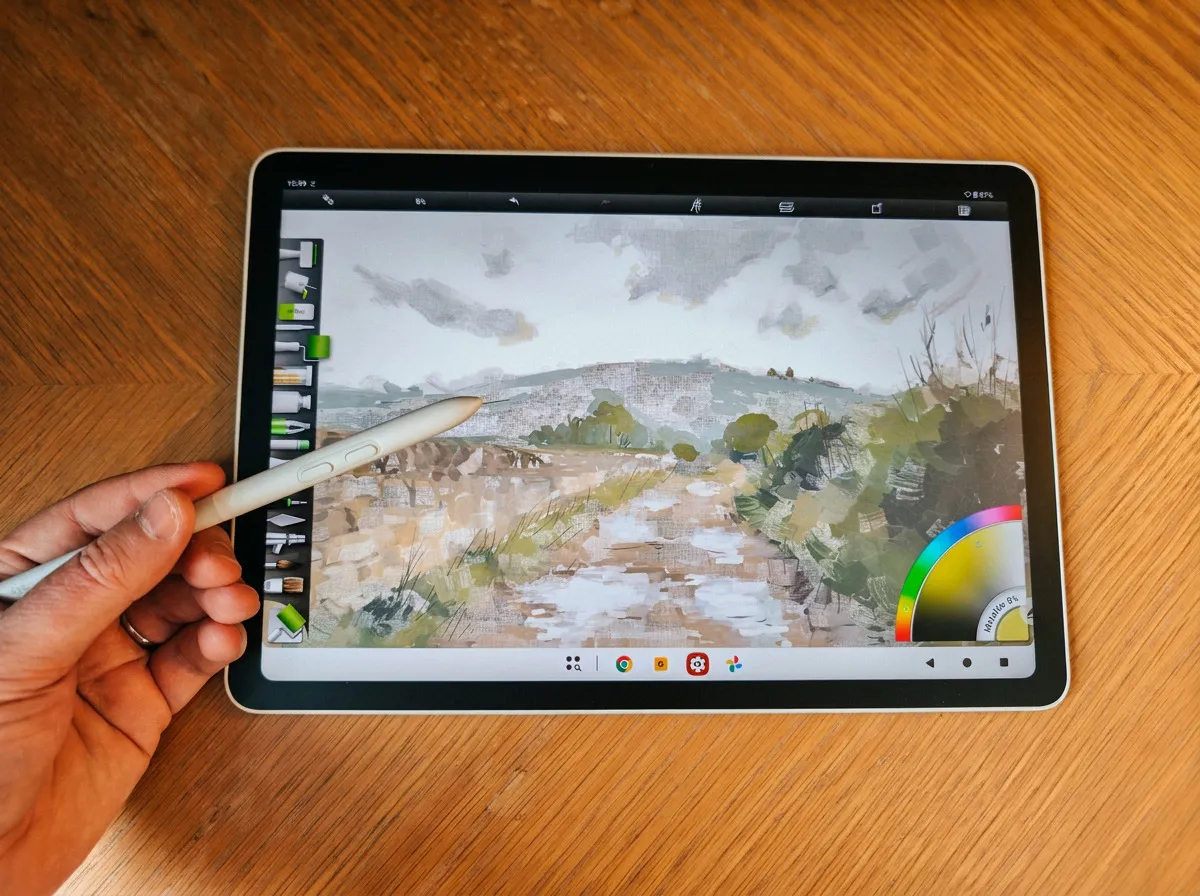
I'm not someone who works with dozens of layers – I rarely get past three before collapsing them – but it's reassuring to know the Magic Pro 13 can cope when you do push it a little harder.
The extra 4GB of RAM on the Wacom gives it an advantage with very large files, and I'd favour it if you're regularly working on complex projects. But for the kind of digital painting and illustration I do, the XPPen is more than capable.
XPPen includes ibisPaint X (one of the best drawing apps for Android) and its own Canvas app, which has a Quick Draw feature that gets you straight into sketching from activating the screen from Sleep mode. It also runs split-screen Android apps, so you can check a web page or email while drawing. The 13MP rear camera and 8MP front camera are useful for reference shots and video calls, and I found the battery lasted a couple of days during my testing.
Wacom MovinkPad Pro 14 vs XPPen Magic Pro 13: connecting to a PC
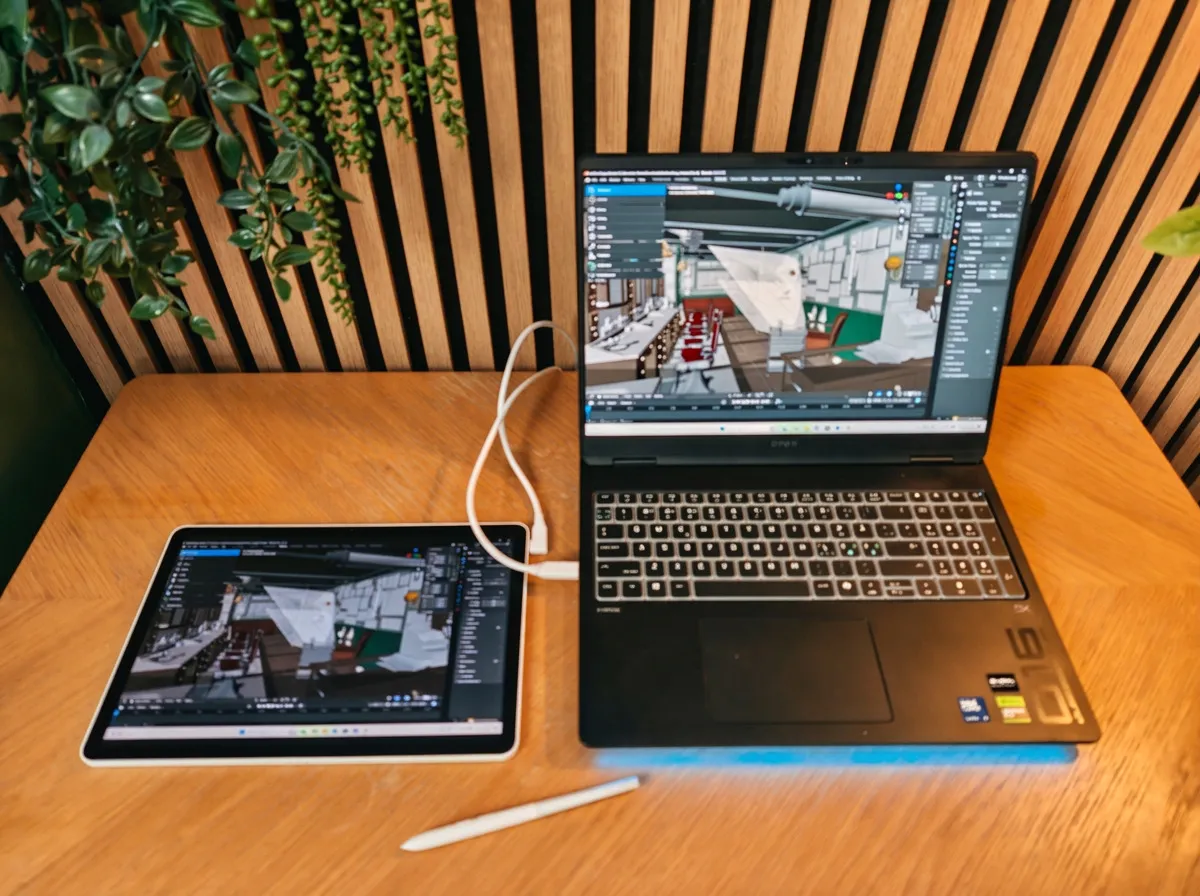
Here's a feature that I think makes the Magic Pro 13 particularly appealing. Both tablets can be used away from a desk as standalone Android drawing devices, but Wacom and XPPen take different approaches to connecting to a PC or laptop.
The MovinkPad Pro 14 has Wacom's Instant Pen Display mode, which supports both wired and wireless connections. The wireless option is useful if you don't want another cable trailing across your desk, but it relies on a companion app and requires you to fiddle with settings rather than use a direct hardware video connection.
XPPen has taken a simpler approach. Plug the Magic Pro 13 into a compatible PC or laptop using the supplied USB-C cable, and it works as a drawing display. I connected it to my HP Omen Max 16, and it was recognised straight away, without needing to download drivers or fiddle with settings. I then moved from ArtRage Vitae on Android to Rebelle on my PC, and the transition was easy. That's the sort of flexibility I like, particularly if you work between different art applications.
There is a catch: the XPPen doesn't have a wireless PC mode, so you'll need a cable. But the hardware-level connection is straightforward, and I can see it being useful for anyone who doesn't want to spend money on a separate desktop drawing display.
Wacom offers more flexible connection options overall, but XPPen has made turning its tablet into a PC display remarkably simple.
Wacom MovinkPad Pro 14 vs XPPen Magic Pro 13: which should you buy?

I've enjoyed using both tablets, and I'm pleased that XPPen has finally made something that can go toe-to-toe with Wacom. A few years ago, I'd have struggled to recommend an Android drawing tablet as a serious alternative to an iPad or desktop pen display, but these two have changed that.
The Wacom MovinkPad Pro 14 is still my pick if you want the best screen and a little more power for demanding creative work. Its OLED display is lovely, the 14-inch size gives you more room to work, and the Pro Pen 3 remains a joy to use. It's the tablet I'd choose if I were buying one primarily for digital painting and illustration.
But don't dismiss the Magic Pro 13. I was genuinely surprised by how good the X4 Smart Chip Stylus is, and the fact that I couldn't tell it apart from Wacom's pen when testing accuracy says a lot about how far XPPen has come. The LCD isn't as impressive, and the extra RAM on the Wacom is useful, but the XPPen is a very capable drawing tablet in its own right.
Then there's that USB-C connection. If you want to draw on the move and use desktop software at home, the Magic Pro 13 saves you buying another device, and that makes the price difference even more appealing.
I'd buy the Wacom for its screen, but if I wanted one tablet to take out sketching, paint with on the sofa and plug into my PC when I get home, I'd be very tempted by the XPPen.
Overall winner: Wacom MovinkPad Pro 14