Here at Athena Productions, we are fortunate to work on a wide range of video games, from indie to AAA titles. Every image we create tells a story, whether it’s the function of the smallest prop or the narrative behind the largest environment. There is always a story being told, and choosing the right tools – from the best 3D modelling software to the best drawing tablets – plays a crucial role in how effectively that story comes to life.
Creating effective horror concept art is all about intention. Every design decision, from composition and lighting to creature silhouette, needs to be made with the viewer’s emotional response in mind. The goal isn’t just to make something look scary, but to build tension, atmosphere, and impact from the initial brief through to the finished piece. Just as important is having reliable hardware, whether that’s the best laptop for 3D modelling to handle heavy scenes on the move or a studio workstation built for complex renders.
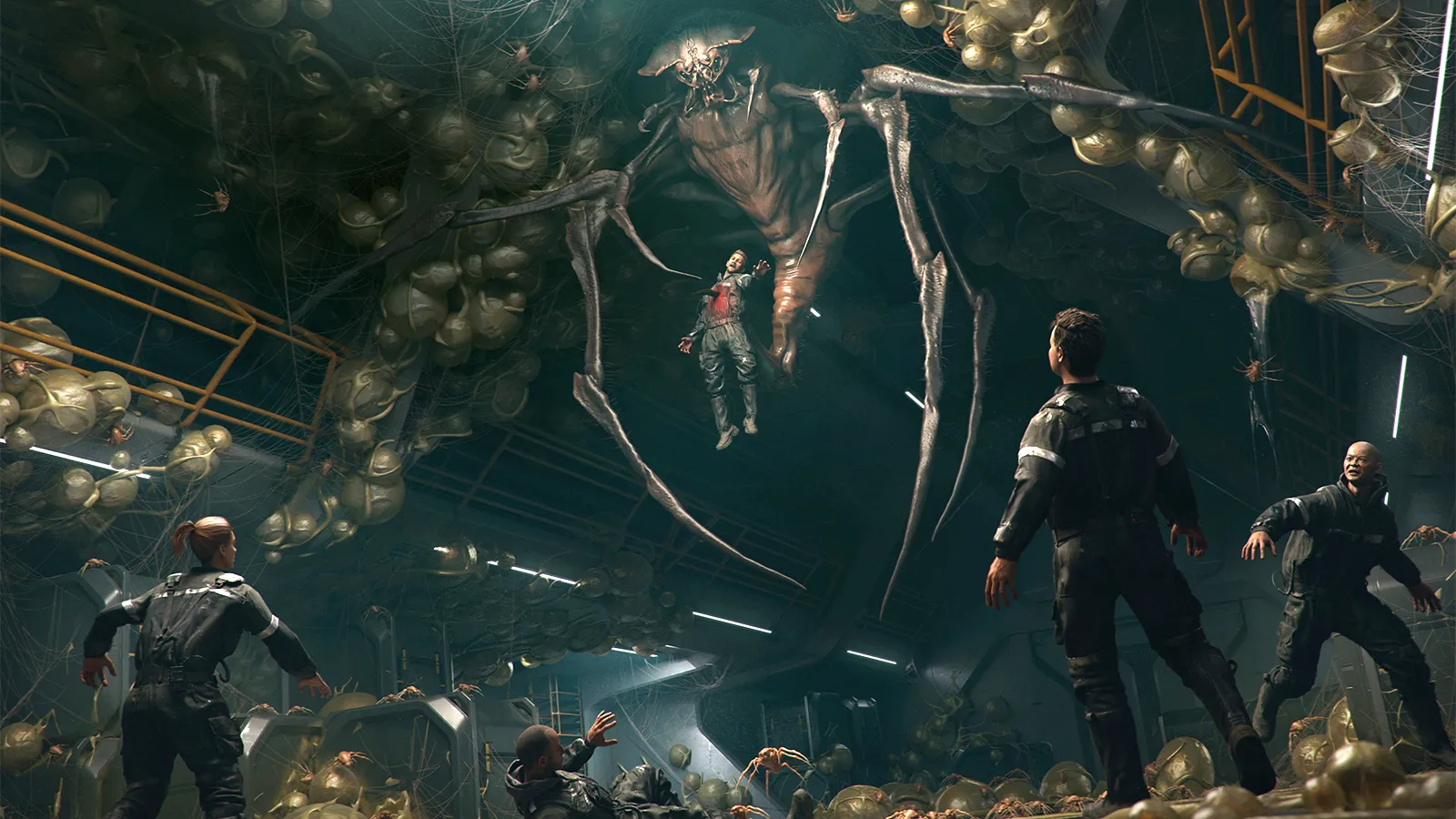
In this workshop, our team has created a terrifying keyframe using ZBrush, Blender, and Photoshop, featuring a spider-like creature revealing itself to a petrified crew. During this feature, we will walk you through the process of developing the creature design – starting with the familiar silhouette of a spider and then pushing into the unfamiliar to create something truly unique and harrowing.
From there, we will then move into the environment, using a blend of 2D and 3D techniques to rapidly iterate and refine our setting. Working across the best 3D modelling software and responsive pen displays allows us to move quickly between blockout and paintover, refining ideas without losing momentum. Finally, we will bring the creature into the scene and use lighting, mood and storytelling details to fully sell the final keyframe. Read on to discover the secrets of how we work...
1. The story
Before gathering references, we establish the scene's story. This can be a simple one-line idea or a longer description – whatever helps define the core ‘hook’ that guides your design decisions. For this piece, we aimed to capture a tense moment in a sci-fi corridor as a spider-like creature reveals its presence to the crew, unleashing chaos.
2. Collecting references
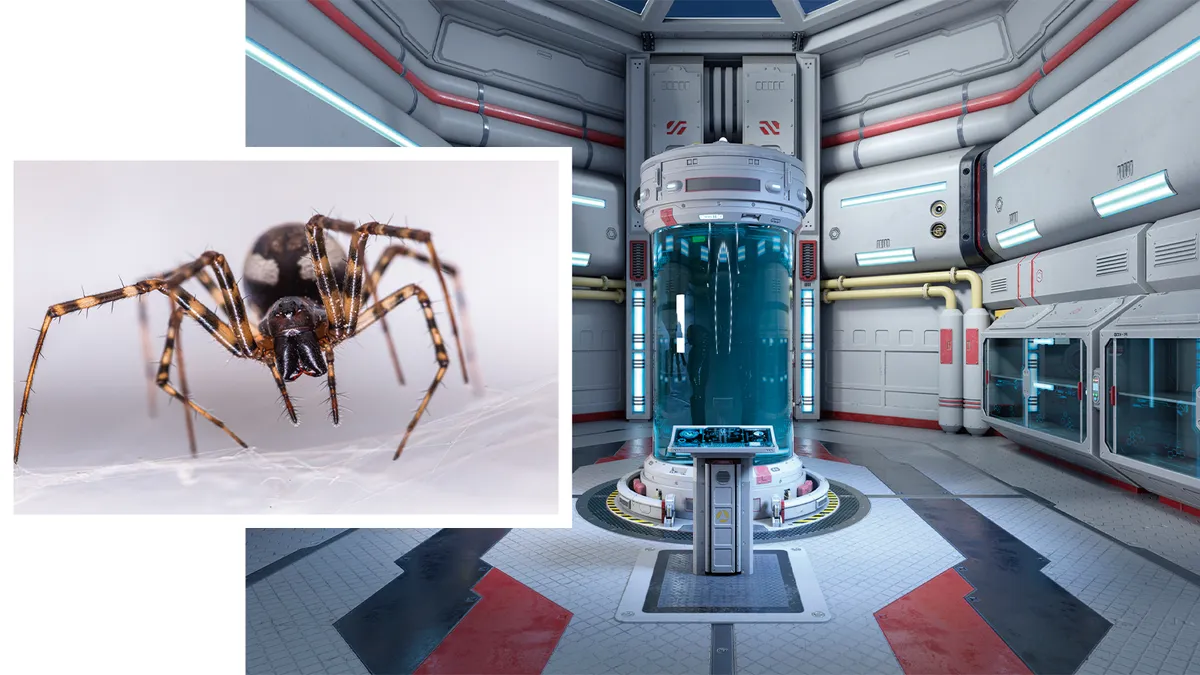
As always, we start by gathering references. Even with a strong visual library, memory isn’t enough. Details like spider leg movement or webbing behaviour require research. We explore sci-fi corridors, architecture, arachnid anatomy, horror films, and practical effects to find the balance between realism and spine-chilling fantasy. Software like PureRef or Photoshop helps us organise references while keeping the brief focused.
3. Sketching the monster
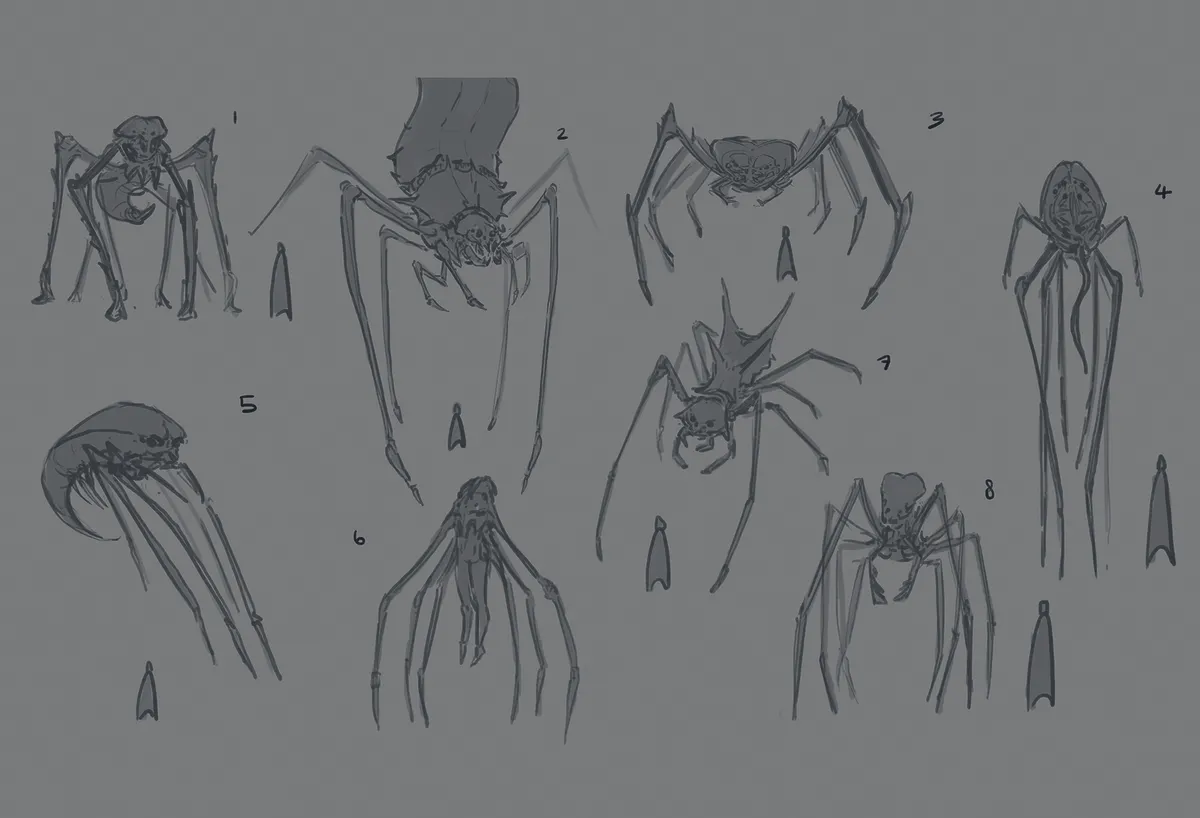
We start with black-and-white 2D silhouette sketches to explore the creature’s design. Early sketches are for rapid iteration, not final polished art. Staying loose lets us test many ideas quickly and move on when something doesn’t work. At this stage, we stick to 2D in Photoshop, focusing on speed and iteration rather than detail, keeping the process flexible before we commit to refining the designs.
4. Refining the designs
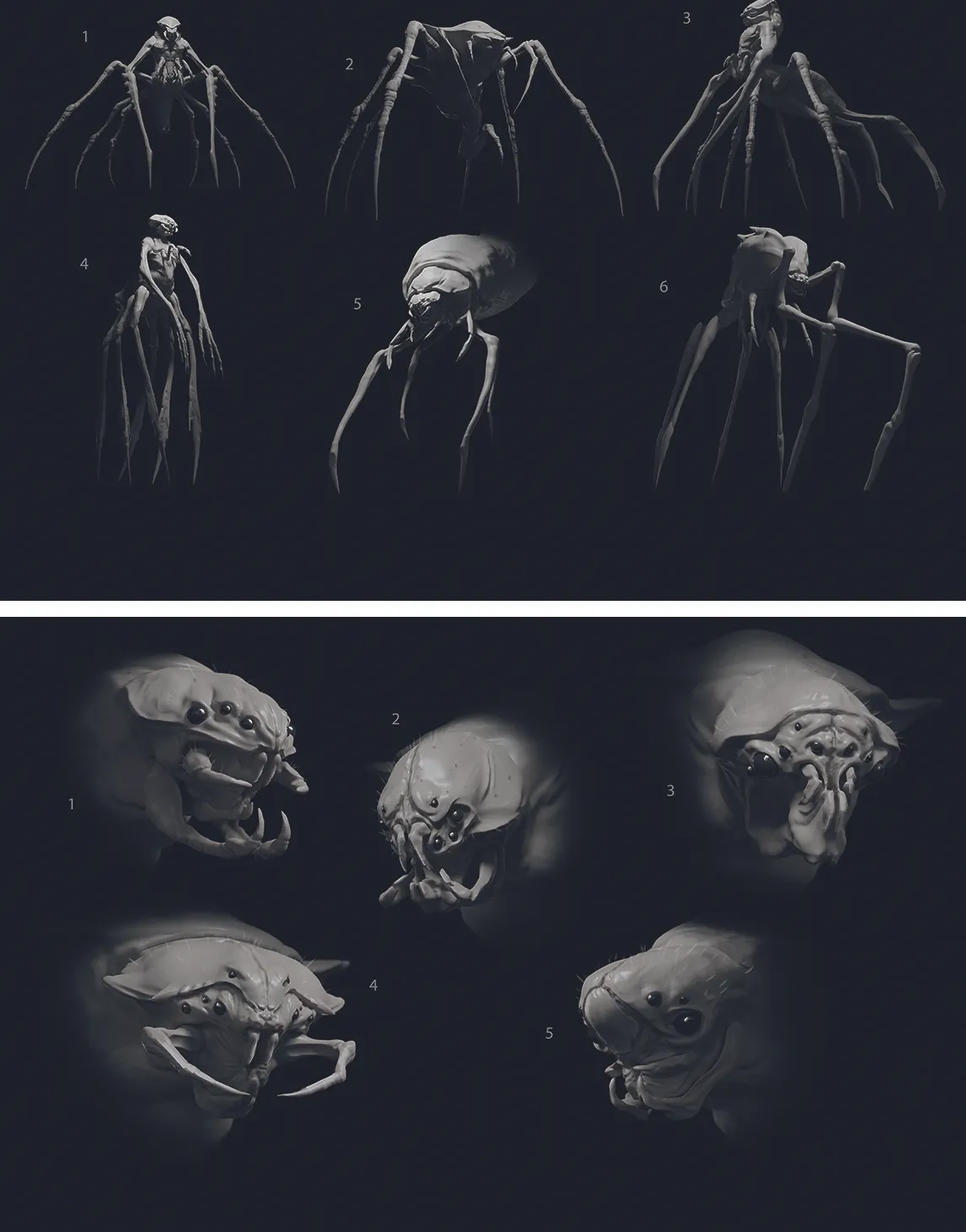
When we are ready and feel we’ve got a good direction, we go into ZBrush to explore the designs we like in more depth. We try a few body silhouettes and begin exploring the creature's facial structure, making sure it is as terrifying as possible.
5. Creating the monster in ZBrush
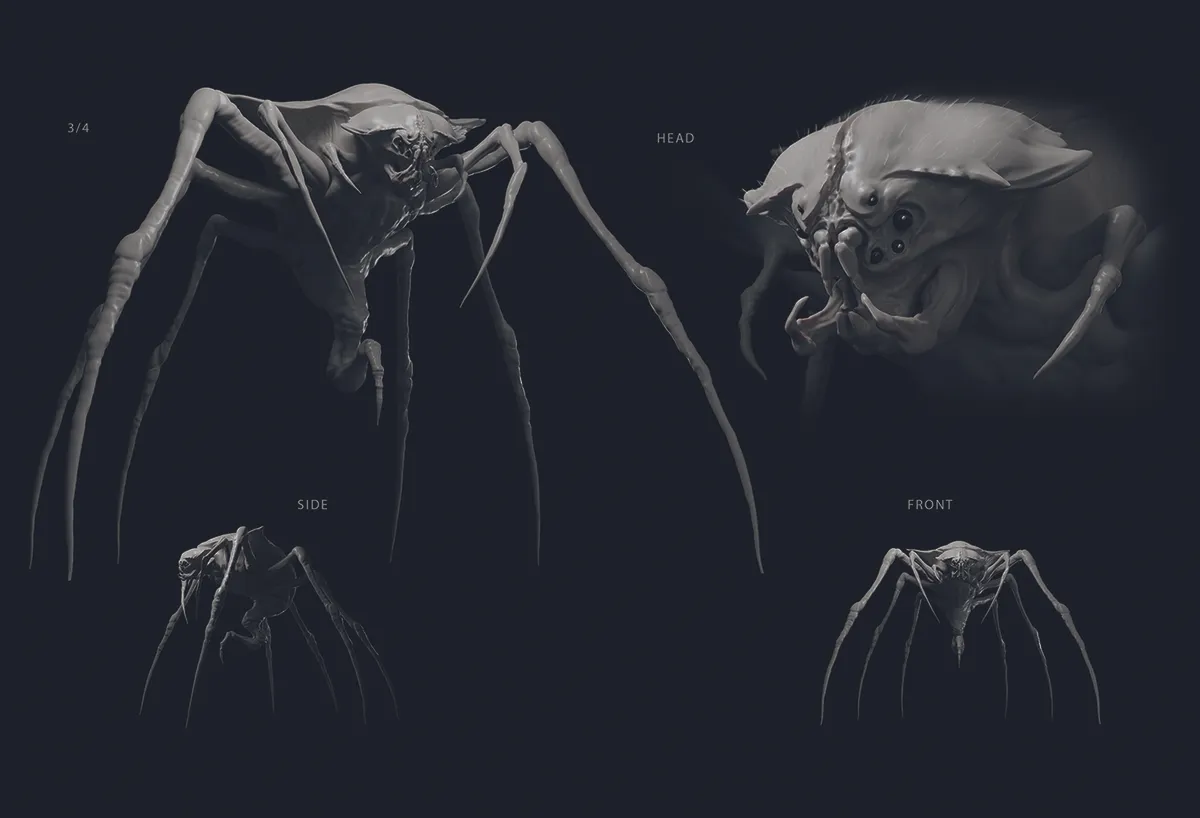
For the main monster, when sculpting in ZBrush, we start with big shapes and rough details. We work to scale and use IMM brushes, ZSpheres, and Dynamesh to block forms, separating key parts for easier sculpting. Using GoZ speeds up tests between Blender and ZBrush. For texturing, we use ZRemesh, UV unwrapping, Polypaint, and baking normal and displacement maps in Blender.
6. Supporting cast
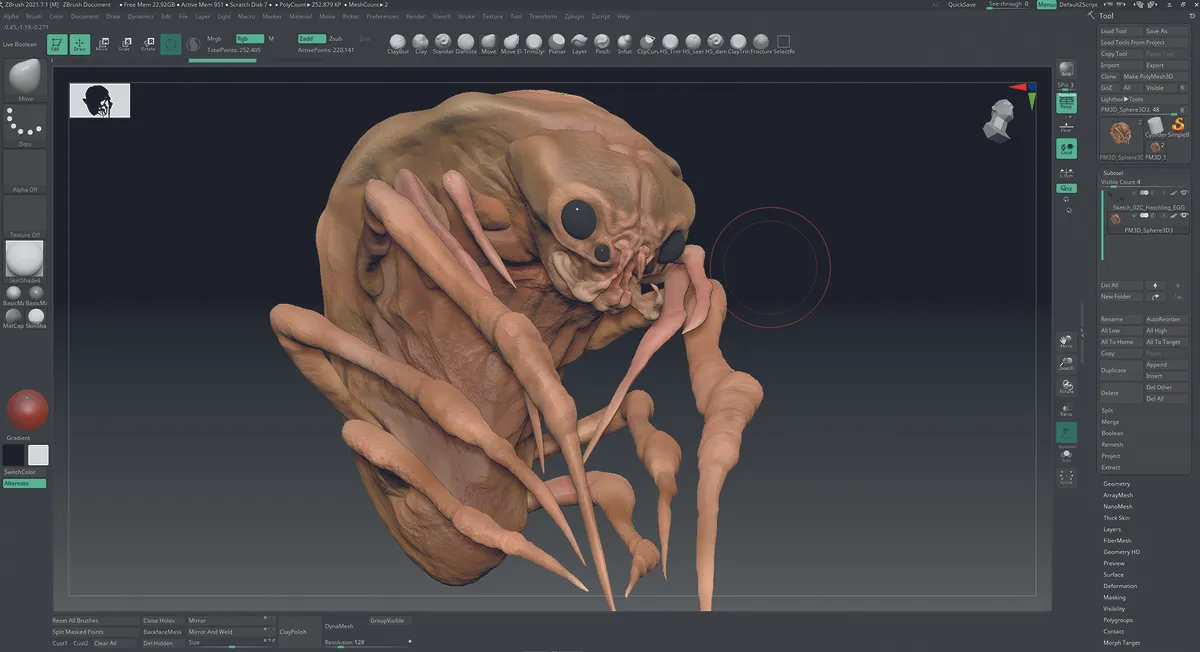
We knew early on that this would be the creature’s nest, so we added eggs and hatchlings. Once the monster design was approved, we created the spiderlings as simplified versions of the main model – younger and less developed. They needed to read as its offspring that will eventually grow into the same horrifying creature.
7. Sketching the environment
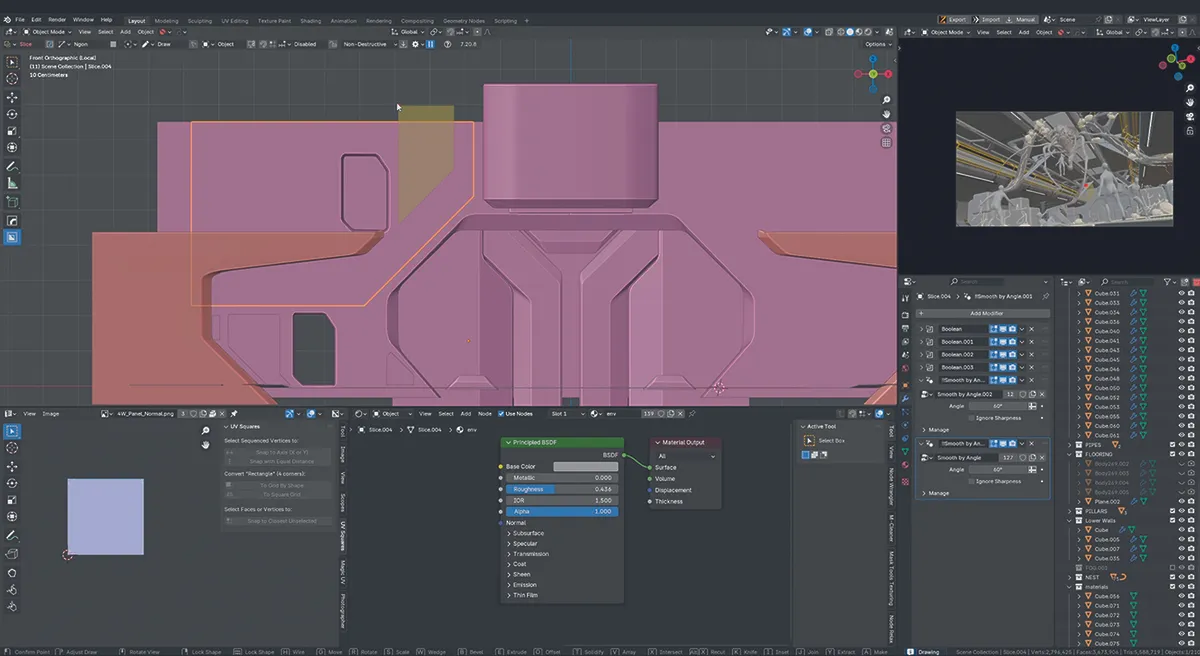
When building environments, we start with blockouts in Blender using shapes to establish the environment's layout before going into detail. We knew that we wanted the corridor to feel more dynamic than just one floor, so we introduced two levels. This helps create verticality and lets us stage the monster in horrifying ways. This stage focuses on hard-surface modelling, shape, composition, and lighting, which are crucial for horror. Tools like HardOps and Boxcutter, combined with basic modelling techniques, help us block in the corridor quickly before adding details.
8. Hybrid workflows
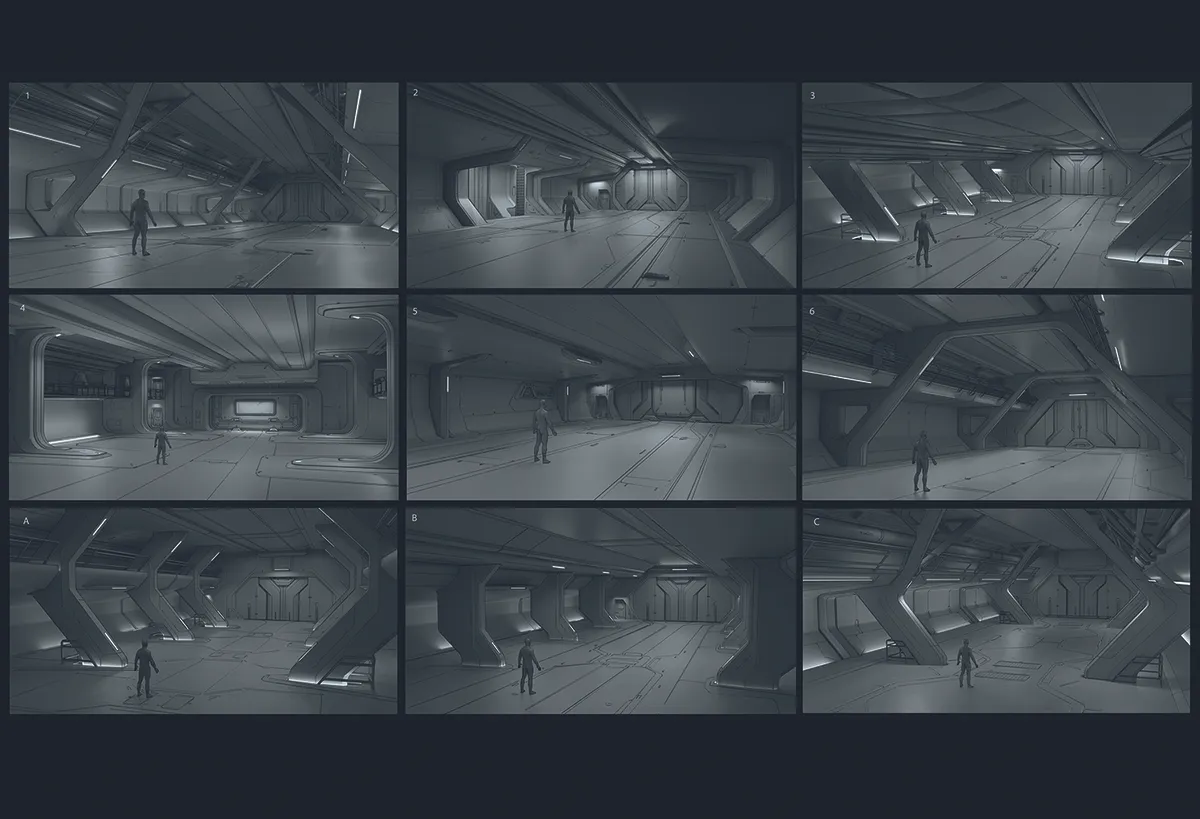
We often use Blender to quickly block out the 3D environment, before switching to Photoshop to sketch additional details over it and handing the work to an art director for feedback. This approach lets us nail camera angles and perspective efficiently without slowing down the process by getting into needless details. It’s a technique that we rely on frequently during production on video games, allowing us to iterate and hand-in to clients rapidly!
9. Adding in the monster
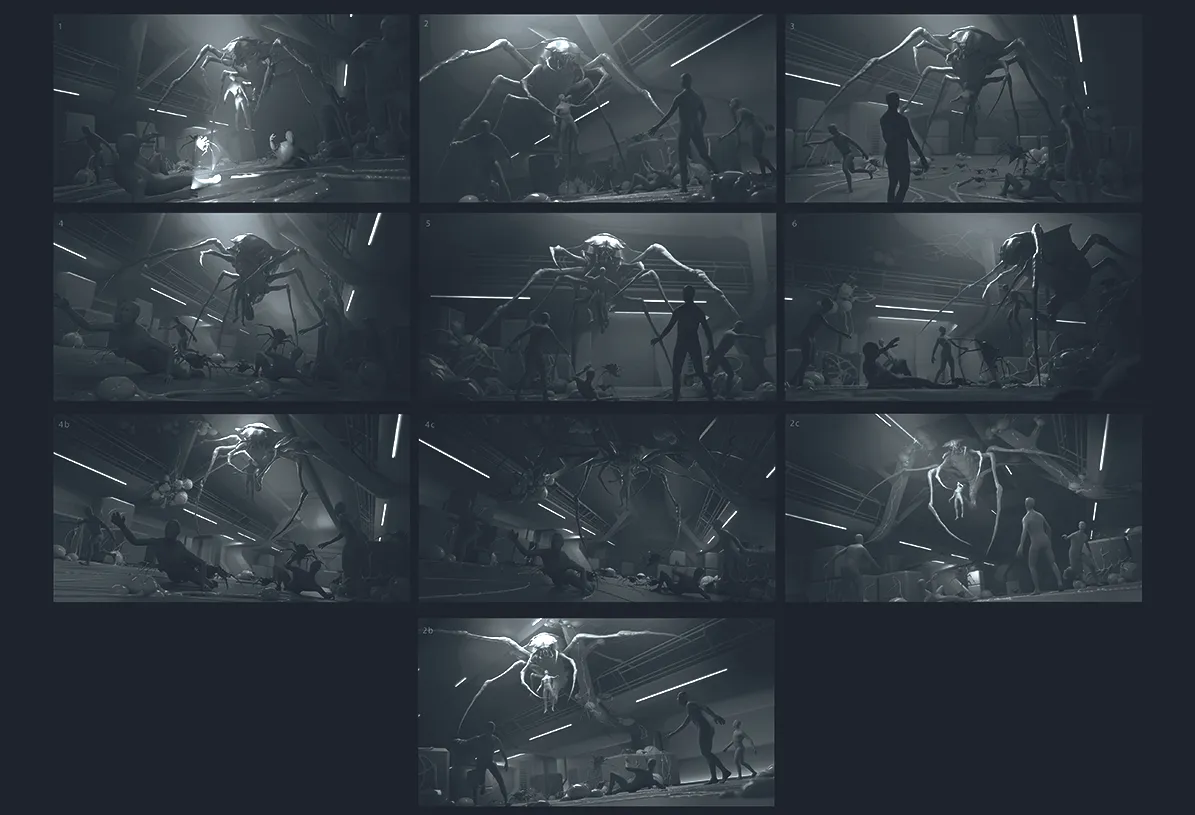
Now that we’ve established the environment, we bring in the star of the show: the creature! We import from ZBrush into Blender before rigging the monster with the Rigify plugin. This allows us to pose it dynamically and animate it later. From here, we can test different camera angles and compositions, always searching for the most unsettling perspective.
10. Let’s talk about mood
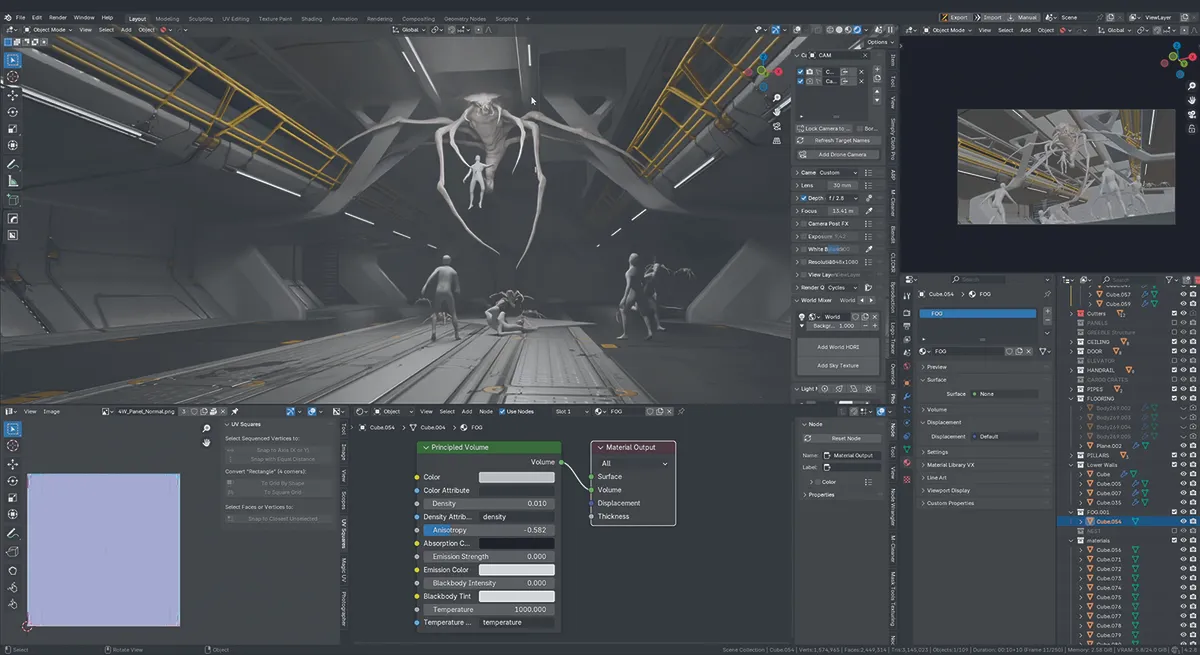
Lighting and colour are some of the most important tools for conveying emotion. Horror relies on the contrast between shadow and light, so we plan where things vanish into darkness and where slivers of illumination reveal glimpses of the nightmare. Cold colours like blue or green enhance tension. Shadows let viewers imagine unseen threats, while strategically placed ceiling lights and leading lines guide the eye, directing focus and building suspense.
11. The nest
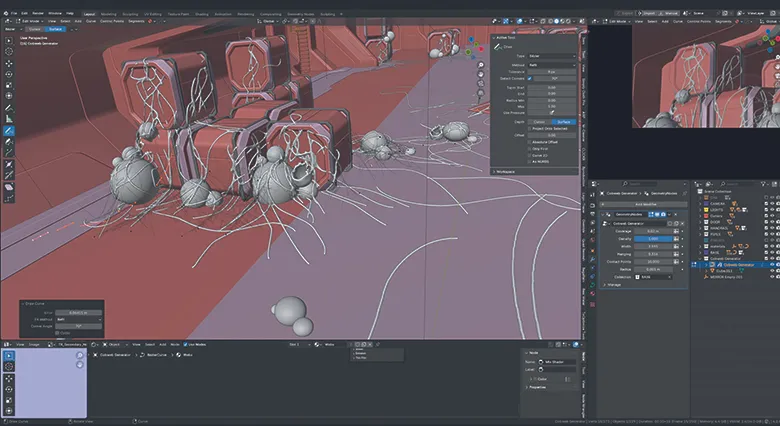
At this stage, we import the eggs and spiderlings sculpted in ZBrush into Blender. We followed the same workflow as with the creature, adding a rig to the spiderlings so they could crawl, leap, and fall across the environment. We scatter eggs on walls, floors, and ceilings, exploring materiality from slimy to leathery.
12. Adding expressions to characters
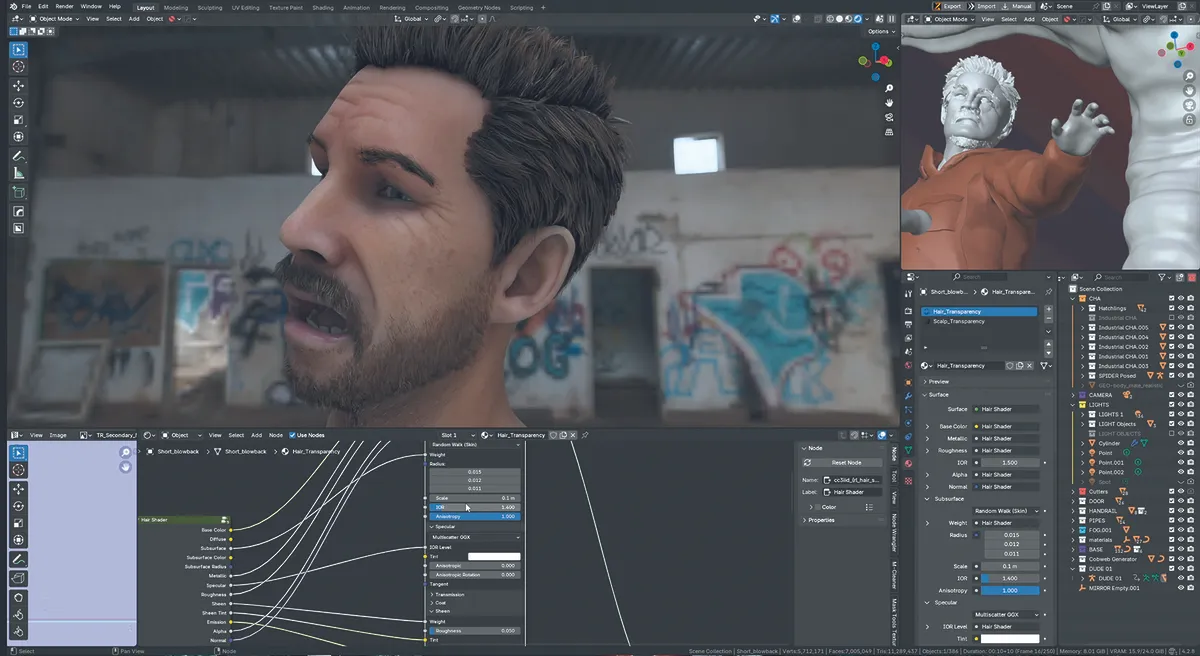
We begin posing human characters. Some cower in terror, others flee, and one unfortunate soul is already ensnared by the creature. These narrative moments bring the environment to life. We use a simple rigged base mesh, combining BMS Industrial Characters for bodies, and costumes with Character Creator to adjust faces and expressions through Blender sliders via the CC bridge. Character expressions get special attention here – we want to see shock, fear, and resignation. Every face has to tell a story.
13. Render tips
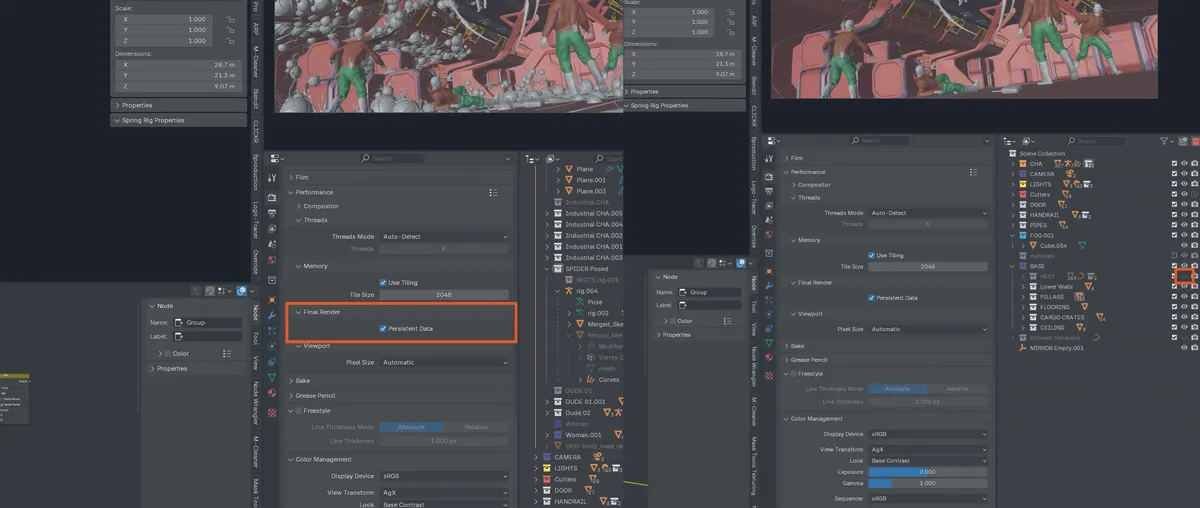
Once everything is staged, we render our shots. As we work, we optimise the scene by avoiding unnecessarily large textures and enabling options like Persistent Data, which is especially useful for animations, as it caches render data in memory. We also decimate heavy geometry and use instances. A little tip to make your viewport run smoother: disable visibility within the viewport while keeping it in the final render. You can also use GPU denoise and play with the Noise threshold and the number of samples to get that perfect render!
14. Photoshop time
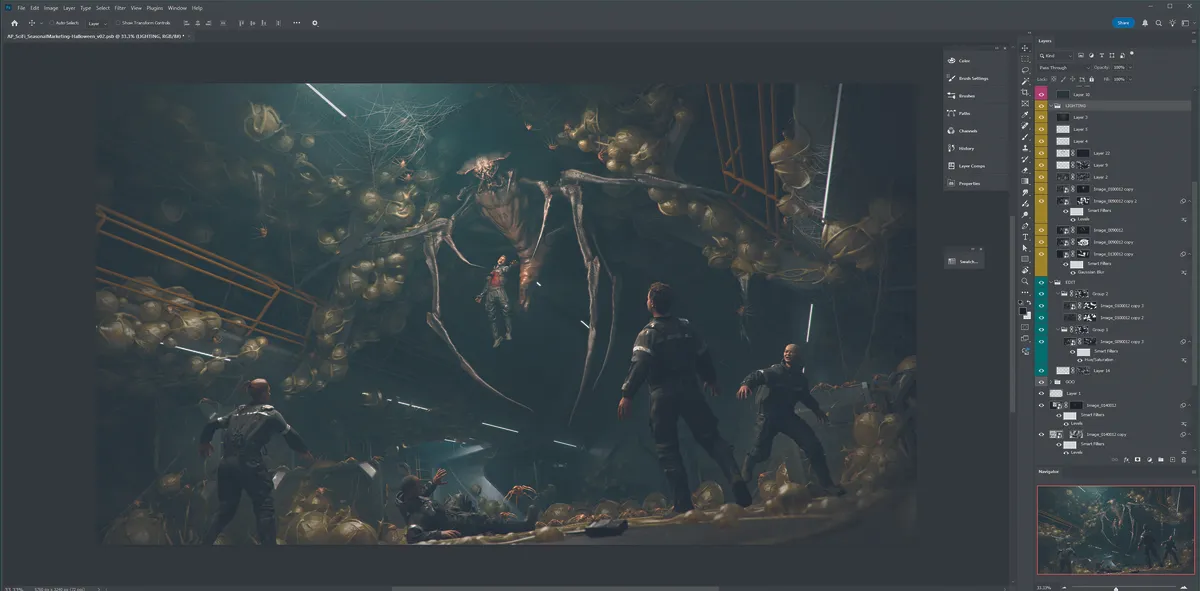
Once the 3D is complete, we bring everything into Photoshop for the final pass. Our artist generates a bunch of useful render passes and composites them to enhance the base render. This is also where the atmosphere comes to life – we push the lighting, add fog, dust, dirt, and slime to lean into that horrifying vibe.
15. Creating turnarounds and preparing for animation
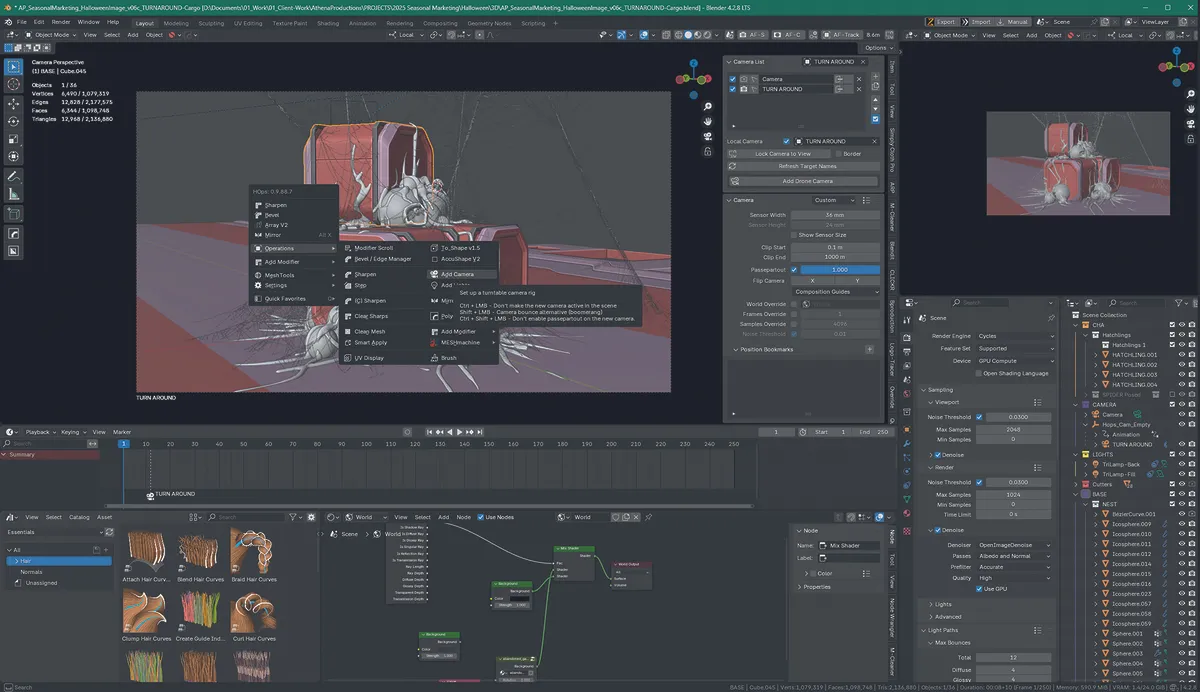
Everything in our scene is rigged, from the creature to every human character so the groundwork for animation is already in place. For creating turnarounds, HardOps is especially useful, offering a quick turnaround camera that makes setting up clean, consistent rotation renders fast and straightforward.
16. The final result
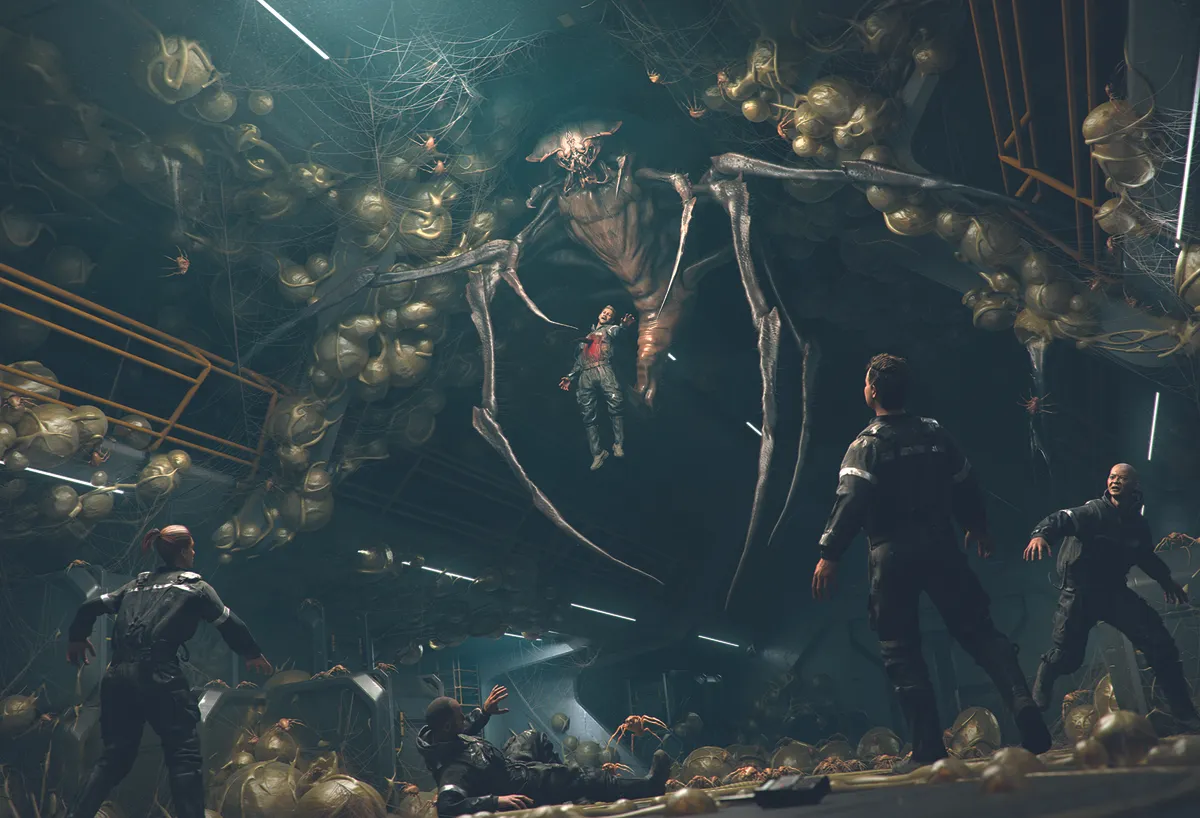
This scene doesn’t just look spooky; it’s genuinely terrifying! It lets you feel the tension of standing in that corridor, staring up at a newly revealed nightmare, knowing escape is impossible. When mood, lighting, design, and storytelling details all work together, they can create a truly horrifying moment frozen in time.
This article originally appeared in ImagineFX. Subscribe to ImagineFX to never miss an issue. Print and digital subscriptions are available.
Get the 3D art kit: