The tools that digital artists use all day, every day, such as a drawing tablet or pen display, have a big impact on our quality of life. They can also be a big monetary investment, so it’s important to get it right. Drawing tablets in particular have exploded in recent years with a mix of display types, features, and tech, and you will often be left asking, 'What features do I need in a drawing tablet?'
To find the answers to that question, I've spoken to leading digital artists for advice. These artists have worked with drawing tablets for years, so they know what matters when they pick a new one.
Working out what size, brand, and price to go for is a unique process for everyone, but our artists' stories and experiences will guide you and bring the right considerations into focus as you make your decisions on which of the best drawing tablets is right for you.
As well as finding the right screen, another top factor is comfort and good posture; a lesson some people have learned the hard way, having sustained injuries from poor positioning. Stands, mounts, and shortcut key devices are your friends – anything that helps you to get an ergonomic setup is worth your attention.
You'll also learn about the accessories that can make all the difference to your drawing experience. For more options, read our guide to the best tablets with a stylus.
01. Keep it simple

It makes sense to buy the simplest tablet for your needs; there’s no point in spending money on features you won’t use. So before worrying about things like screen size and resolution, ask yourself if you even need a screen at all.
Visual development and concept artist Johanna Rupprecht tells me: “For the past 15+ years I have done 99% of my work on a Wacom Intuos – so, for everyone who is on a tight budget, it is very possible to do professional work without a screen tablet!” (Read our Wacom Intuos Pro review.)
Antonio Niculae, a film industry concept artist, also uses the Intuos. “Because I travel a lot and prefer a minimal setup without too many cables, I use the Wacom Intuos S Black with Bluetooth,” he says. “It’s compact, reliable, and fits my lifestyle perfectly.”
Games industry concept artist Jordan Grimmer had a Wacom Intuos until he broke the pen while on deadline for an important project. He ran out and quickly grabbed a Wacom One from a nearby shop to finish the work, and hasn’t felt the need to upgrade. Jordan's is an older model, but there's a new range of Wacom One tablets that are just as affordable.
“People are sometimes surprised to hear that I still use my old Wacom One tablet that I got about 7-8 years ago, which is one of the smallest and cheapest Wacom tablets you can buy,” he says.
“I don’t need or want a big tablet. I’m so used to using a traditional tablet that I don’t gel well with the screen versions of them. I’ve used larger tablets, but I don’t feel like a smaller version hinders me. And I’m glad I can just use something that doesn’t cost a lot of money and still create work professionally.
“I always recommend getting something similar to people, either when they are starting out or when they don’t know what to get. You don’t need a huge and expensive tablet or setup to create digital art.”

Wacom Intuos Small is the brand's cheapest tablet, and is ideal for artists who need precise pen control, custom shortcuts, and reliability without breaking the bank. It's wired, not Bluetooth, but it does come with free art apps.

Wacom One Bluetooth is a step up and offers more room and wireless use. It's great for new artists: a comfortable medium drawing area with a reliable pen, and bundled creative software across Chromebook, Mac, Windows, and Android.

Wacom Intuos Pro Medium is an affordable but well-specced and designed tablet. It's built for pros, with exceptional Pro Pen 3 responsiveness, custom controls and Bluetooth connectivity to deliver studio-level performance across Mac and Windows.

Kelsey Norden, who works in the film and TV industry, also uses a tablet that’s simpler than you might expect for a professional artist: the standard Wacom Cintiq 22HD, which came out in 2012.
“As a storyboard artist, the higher-end models with the 4K resolution, larger screen, improved colour, and touch screen controls don’t add any value to me, since I just work in black and white all the time,” she says.
“I used to have a 24HD monitor that took up too much space on my desk for the work I needed to do, so I don’t recommend it unless you really need that screen real estate. All that matters to me is a reliable monitor that can hold up for many years and has good pressure sensitivity, and I haven’t had a problem with Wacom yet.”
02. Size, resolution and colour accuracy

In terms of size, your first decision is whether you want your drawing tablet to be portable. If you do, you can go up to 16-inch screens. If you’re happy for your screen to stay at your desk, most of the artists I asked chose a 24-inch model.
Concept artist and art director Vita Shapovalenko told us that until recently, she used her touchscreen laptop screen as a tablet for portability reasons – first a Microsoft Surface Laptop Studio 14.4 (14.4-inch touchscreen), then an Asus ROG Flow X16 (16-inch touchscreen).
“Overall, it was comfortable,” she says, “but for detailed drawing I always felt I needed slightly more precise pen positioning and a larger screen.”
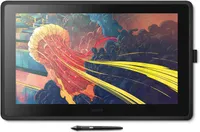
A couple of months ago, Vita bought a Wacom Cintiq 24 Touch 2025. “It turned out to be the perfect combination of price, quality, and all the features I needed,” she says. “24 inches proved to be the ideal size for me.”
Vita appreciates the matte screen, and she likes the colour accuracy – the colours are vibrant, and the black depth is good.
Her chosen model has a 2K resolution, which some people worry is not sufficient for a 24-inch screen. Vita finds it ok, though: “This parameter caused debate online among users about whether pixels might be visible or interfere with work, and I hesitated to buy it for precisely this reason. In my work, I never get super close to the monitor, so it's not a problem for me, and the screen resolution looks great.”
Aleksandra Wojtas also likes the Cintiq 24, which she has used for the past seven years. “It’s the perfect size for me - any bigger and my posture suffers, and smaller sizes feel a little restrictive,” she says. “It has 4K resolution, and that’s more than enough, especially for the screen size.”

Comic artist Cassandra Marks uses a Huion Kamvas Pro 24 4K. “It's honestly one of the best tablets I’ve owned,” she tells us. “I’ve used Wacom and a few others in the past, but the Kamvas stands out as both budget-friendly and incredibly high-quality. The display is beautiful, the pen response feels natural, and it’s just comfortable to work on for long hours.”
Manga creator Chihiro Howe prefers a smaller screen. She explains: “I check the overall look often when I am drawing, and I never make the view bigger than 100% to avoid the excess details I tend to add if I can zoom in indefinitely. So up to 16 inches is a good size for me.”
She also likes the portability factor: “Because technically I can work from anywhere, it's important for me to be able to carry my tools with me and that they are simple enough to set up in case I do need to go elsewhere to work.”

FelixSpiritDragon is another manga artist who has picked a smaller screen, in her case, the Huion Kamvas 16 (2021). “It’s a 15.6-inch display tablet with a 1920x1080 resolution, which has been a great balance between portability and workspace,” she says.

The Wacom Cintiq 24 Touch, as used by Vita Shapovalenko, suits pro artists due to its large colour-accurate display, intuitive multi-touch, and ultra-responsive Pro Pen 3. It has the build and reliability Wacom is known for.

Huion Kamvas Pro 24 features a 4K UHD, anti-glare full-laminated screen, 140% sRGB, battery-free stylus with 8,192 pressure levels, wireless express keys, and a large 23.8-inch workspace for precise drawing. It offers good specs for less cost. Read our Huion Kamvas Pro 24 review.

The Huion Kamvas 16 (Gen 3) is the latest model in Huion's popular mid-priced pen display. It offers a 15.8-inch 2.5K display, anti-glare laminated glass, 99% sRGB, and the new Pentech 4.0 stylus with 16,384 pressure levels. Read our Huion Kamvas 16 (Gen 3) review.
03. Pen response and accuracy

Pen response is a top priority for most artists when selecting a tablet, especially those who started out using traditional materials. They want a natural feel, and definitely no lag.
Chihiro currently uses a Xencelabs drawing display. “They are a bit pricey, about the same as Wacom,” she says, “but I like the pen flow. I’ve tried other, more affordable tablets before, but I couldn't get past the very slight lag between my movement and the pen tip on the screen.
“I used to be a traditional artist before I started my career in manga, so digital tools have to be almost the same as when I am using a traditional pencil. Any lag, no matter how small, throws me off, so I had to find one that has none that I can detect.”
Concept artist Oz Ezeogu also started out drawing with traditional materials, and he wanted a tablet that “didn’t feel like a huge adjustment”. He uses a 13-inch iPad Pro (M4), which he says feels “immediate, responsive, and never gets in the way.”
He tells us: “The Apple Pencil is really the heart of the whole experience. The way it reacts to pressure and angle feels intuitive, almost like sketching with a real tool, and that made the transition from paper much easier. There’s a sense of directness to it as you draw, and the line is just there without any delay or disconnect.”

For Aleksandra Wojtas, the Wacom Art Pen with barrel rotation that she uses with her Cintiq 24 is very important. “Quite honestly, it will be top on my list of priorities when purchasing my next tablet,” she says.
Barrel rotation enables artists to mimic the brushstrokes of real paintbrushes, and many have built up their digital art style around this technique.
The Art Pen is currently unavailable due to problems sourcing some of its components, something that is causing great distress in the art community, as barrel rotation is a crucial part of the workflow for many artists, and heavy users need to replace their Art Pens regularly as they wear out if used all day, every day.
The Apple Pencil Pro also has a barrel roll feature, which could be an alternative for some if they are willing to switch platforms.
Vita likes the Wacom Pro Pen 3 she uses with her Cintiq 24 Touch 2025. “It’s very responsive and accurately conveys all movements and pressure without parallax and other annoying issues,” she says
“It's quite light and slim and resembles an ordinary pencil in shape. Also, if desired, you can buy a set of thickness and weight modifiers for the pen on the website - exactly the same as what comes with the Cintiq Pro version.”

Wacom Pro Pen 3 is a battery-free, precise electromagnetic pen, with customisable grips and buttons, balanced weight, and interchangeable tips offer ultimate control for drawing, design, and animation.

Apple Pencil Pro is perfect for artists: ultra-precise, pressure- and tilt-sensitive, seamless with iPad, low latency, supports gestures, perfect for sketching, painting, note-taking, and professional creative workflows anywhere.

Xencelabs Pen is a battery-free, 8,192 pressure levels, passive stylus with three programmable buttons, offering precise, responsive control for digital drawing and design on compatible tablets. There's also a Thin model.
04. Accessories

A must-have for your tablet is a screen protector. Antonio says, “All tablets, no matter the brand, will eventually get scratched with use. That’s why I always recommend investing in a screen protector or glass film. Not only does it protect the surface, but it also makes the pen glide more smoothly, which improves the drawing experience.”
Fantasy illustrator Ana Bidault uses them to make her drawing experience more natural. She says: “One of the first things I do when I get a new iPad is put on a paper-textured screen protector because I don’t like drawing on slippery glass. I also use a non-slip grip for the Apple Pencil because it tends to be pretty slippery too.”
Cassandra recommends gloves: “I’m a huge fan of drawing gloves – they keep my hand from smudging the screen and make movement way smoother.”

Rock Paper Pencil is great for artists: a paper-like iPad surface improves control and feel, reduces glare, and pairs with precision Pencil tips for more natural sketching and drawing. Read our Rock Paper Pencil review.

Paperlike 3 is ideal for artists: a true paper-like texture boosts pencil control, reduces glare, installs bubble-free, and protects Apple Pencil tips for smoother, more natural iPad drawing.

Paperlike Drawing Glove helps artists draw comfortably by reducing friction and palm interference. This one fits both hands, and supports long, precise drawing sessions on iPad and drawing tablets.
05. Stands and mounts

One of the advantages of using a screenless tablet is that the drawing position is more comfortable and it can be better for your posture. If you do go for a tablet with a display, especially if it’s a larger one, it’s important to put it in a stand that gives you the most ergonomic position possible. Many artists like to position it like a traditional easel.
You don’t have to spend much; Cassandra uses a simple stand she got online for $20. “It’s nothing fancy, but it props the screen up to eye level, which makes me feel like I’m painting traditionally again – and I love that feeling,” she says.
For more flexibility, you can use an arm instead of a stand, so that your screen is free-floating and more adjustable. Aleksandra chose this route for her Cintiq 24: “A few years ago, I switched from the Wacom Ergo Stand to the Flex Arm, and I only wish I had done it sooner! The flexibility it gives me is incredible, my neck has never been happier!”
It’s worth researching your stand options when you buy a tablet. Check to see what kind of stands you can get from the manufacturer, or whether the tablet you’re considering is compatible with a standardised system like VESA.

FelixSpiritDragon wanted an arm for her Huion Kamvas 16. She had a few hiccups with the implementation, but found a way to make it work. “This model doesn’t support VESA mounting, and I really wanted it on a monitor arm for better ergonomics,” she explains.
“So I bought an external bracket… then realised the tablet was too thin for it. So my solution was to put foam and cardboard in the back to make it thicker. Surprisingly, it’s been perfect for four years.”
You'll find some brands like Huion and XPPen will package stands in with their tablets, but more importantly, brands tend to make stands that fit the tablets they sell – visit the online stores for XPPen stands, Huion stands, Xencelabs stands, and Wacom stands.
06. Controllers

Another consideration for your comfort and posture is what you will use for your shortcut keys. Some tablets have programmable keys on the side of the unit itself, or you can use an external programmable keypad that sits on your desk.
Chihiro uses the Xencelabs Quick Keys shortcut key device. “If you are doing art digitally, shortcut devices are very helpful," she says. “I use shortcuts like ‘copy’, ‘paste’, ‘undo’, ‘redo’, ‘transform’, etc., all the time, and I used to just use my laptop's keyboard until I got tendonitis from reaching over constantly. This device allows me to use the shortcuts without straining my wrist.”

Xencelabs Quick Keys offers 44 customisable shortcuts, tactile dials, OLED labels and Mac/Windows support. It's Bluetooth, can be used with Wacom, XPPen and Huion, and is one of the best remotes we've used.

This is a compact but feature-rich controller designed for speeding up drawing and video editing by reducing. It can be used with all tablets and software, but it could be overkill for some. Read our TourBox Lite review.

Huion's popular remote has dual dials, 60 customisable shortcuts, OLED displays and Bluetooth support. It works with all Bluetooth drawing tablets and supports PC, Mac and mobile.
07. Value for money

Getting good value for money is a case of working out what features you need and only buying those. If you don’t need a screen, you can save yourself some money and have a better drawing posture. If you do need a screen, it's best if you can try out different models so you can decide whether it's worth it for you to get a large one, and whether you need the top resolution.
Vita is happy with the 2K resolution of her Wacom Cintiq 24 Touch 2025, which she bought after weighing features against cost during an intense research session this year.
“Comparing different models on the market, this tablet looked most attractive to me, packing in the maximum number of important features while maintaining a good price,” she says. “I was also pleased that it came with the latest pen and a compact stand, unlike the Pro versions, where the stand is quite bulky and purchased separately.”
Story artist and cartoonist Randeep Katari raves about his iPad Pro, which he thinks is great value for money. “Between price point, quality, and portability, nothing I've found beats the iPad Pro,” he says.
“I have the 13-inch Pro with Apple Pencil, and it's phenomenal; I have done all of my work on it since 2020, forgoing any other tablets. Coupled with the angle the iPad smart cover provides for drawing, it can't be beat. I look for great resolution, portability, and a size that feels like a good sketchbook to draw on. Also, given the price point and how versatile it can be for various other things, I love it.”

Apple’s new iPad Pro with the M5 processor has fantastic Ultra Retina XDR visuals, Wi-Fi 7, Apple Pencil Pro compatibility, and upgraded cameras.

This is the larger 13-Inch M5 model, with the same Ultra Retina XDR Display, 256GB, and features a handy LiDAR Scanner. Great for 3D artists who use ZBrush for iPad.

This is the older M4 iPad Pro, but still more than capable of running 3D apps and iPad the best drawing apps for iPad. It features many of the same specs as the new iPad Pro models, but has the older processor.