The best iPad art apps 2026 can turn any tablet into a portable studio, letting you sketch, paint, and experiment wherever you are. Pair an iPad Pro or iPad Air with an Apple Pencil and your touchscreen becomes a responsive, versatile canvas, perfect for both quick sketches and detailed work. If you’re unsure which device to choose, check out our guide to the best iPad for drawing.
We’ve tested dozens of apps and spoken to artists who contribute tutorials and features here, focusing on those that excel in performance, toolsets, and stylus responsiveness. I also use some of these apps – Procreate, Heavy Paint, ArtRage Vitae – regularly. Whether you’re just starting out or are a seasoned professional, there’s a tool to fit your workflow. For beginners, our iPad art tips for beginners explainer is a great starting point, and our iPad Pro Apple Pencil guide helps you get the most from the hardware.
Want to see more ways an iPad can help your creativity? Read our digital plein air tutorial and catch up on 3D with ZBrush for iPad. Otherwise, scroll down for our pick of the best drawing apps for iPad, hand-picked for 2026.
The best drawing apps for iPad today
Why you can trust Creative Bloq Our expert reviewers spend hours testing and comparing products and services so you can choose the best for you. Find out more about how we test.
For everyone
01. Procreate
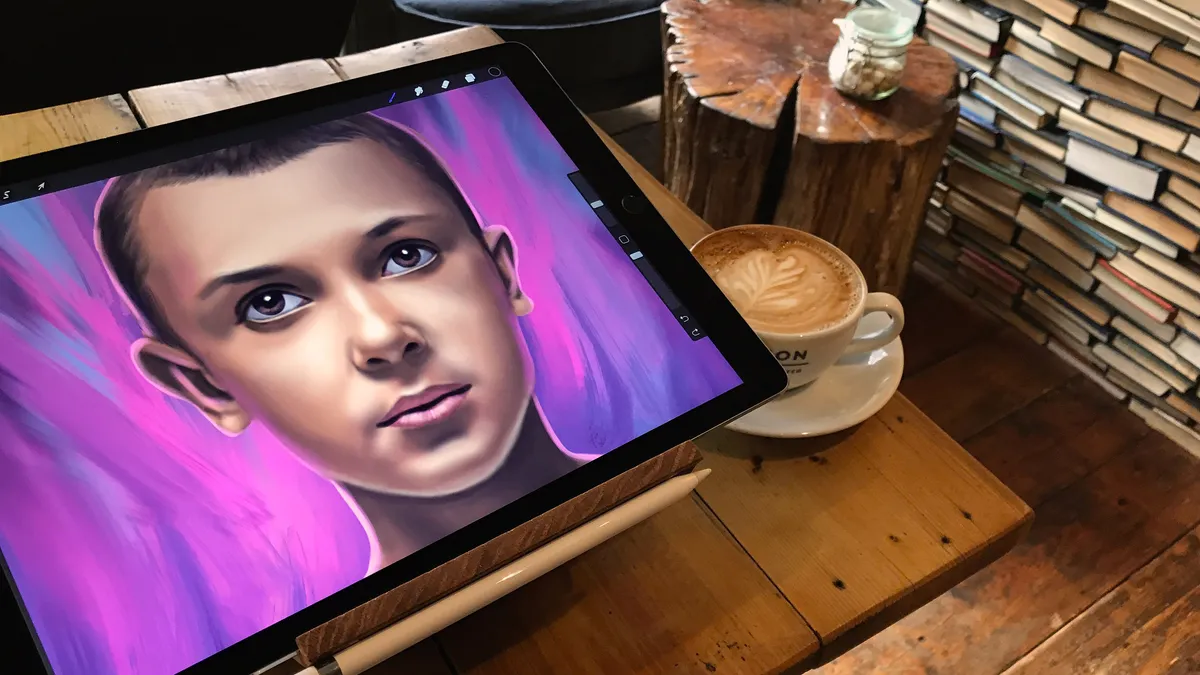
It’s hard to talk about making art on an iPad without mentioning Procreate. Years on, it’s still the app most artists reach for first, and the 2025/26 version shows why. What began as a brilliantly simple sketching tool has grown into a fast, confident production app capable of producing finished, professional work.
Procreate’s interface remains one of its biggest strengths. Everything feels exactly where you expect it to be, and recent refinements to gestures, brush behaviour, and performance make working on large, layered files feel effortless. The brush engine is particularly strong, with improved stabilisation and pressure response that suits everything from loose pencil work to tight ink lines.
Animation is where Procreate has made its biggest leap. The tools are still approachable, but they’re now robust enough for short films, looping illustrations, and motion-heavy social work, with improved timeline controls and export options. The dedicated Procreate Dreams takes these basic tools and turns them into complete workflows.
Colour handling is excellent, with flexible palette management and harmony tools that genuinely help decision-making rather than getting in the way. Procreate also continues to support 3D painting, letting artists texture models for use in Blender or ZBrush.
As a one-off purchase with no subscriptions, Procreate remains an exceptional value. It’s still iPad-only and raster-based, but for most artists, that’s a trade-off worth making. Read our Procreate tutorials to get started.
Read more: full Procreate 5 review.
02. Adobe Illustrator for iPad

For vector art and graphic design work such as logo design, Adobe Illustrator has long been the industry standard, and its iPad version is now one of the strongest arguments for doing serious design work on a tablet. While it still works best as a companion to the desktop app, Illustrator for iPad has matured enough to comfortably stand on its own for many day-to-day vector tasks.
Over the past year, Adobe has focused on making Illustrator on iPad feel less like a secondary tool and more like a core part of its ecosystem. Performance has improved noticeably when working with larger, more complex files; Apple Pencil input feels more precise; and text tools are more reliable than in earlier versions. File handoff between iPad and desktop is also smoother, which is crucial if you’re jumping between devices as part of a professional workflow.
The app brings many of Illustrator’s essential tools into a streamlined, touch-first interface that suits the iPad surprisingly well. If you’re reviewing work with a client, sketching out logo ideas, or refining vector layouts away from your desk, it’s genuinely useful to be able to open full Illustrator files and make real edits without hauling a laptop around. Adobe’s cloud-first approach means you can move between devices with minimal friction.
That said, this is still not a full replacement for desktop Illustrator. Advanced features such as gradient meshes, shape-to-shape blending, and certain effects remain absent, which will matter to illustrators and designers working at the more experimental or technically complex end of vector art. The app is also free to download but gates some pro features behind in-app purchases, making a full Illustrator or Creative Cloud subscription the realistic option for professionals.
Even with those caveats, Illustrator on iPad earns its place in any list of the best iPad design apps. Tools like radial, grid, and mirror repeat are genuinely powerful on a touch screen, and the steady pace of refinement through 2025 and into 2026 has made it feel far more dependable than in its early days. If vector design is central to your work, this is the iPad app you’ll almost certainly want installed, even if the desktop version is still doing the heavy lifting.
Read more: full Illustrator for iPad review.
03. Photoshop for iPad
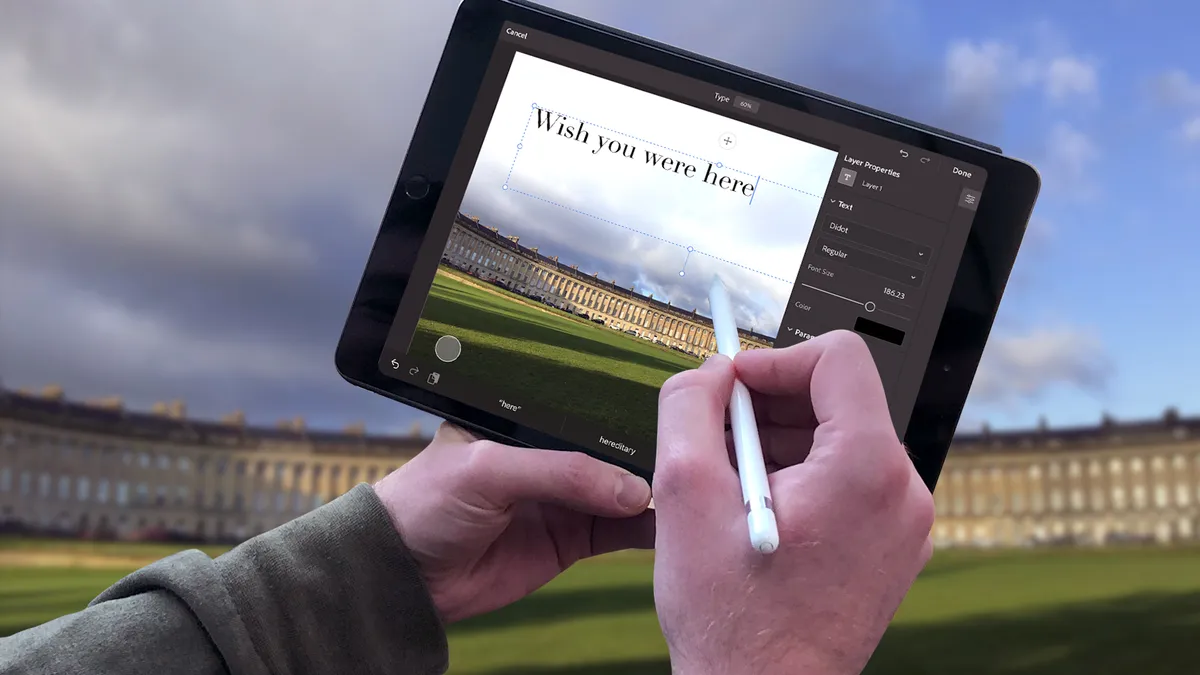
Photoshop is still the benchmark for photo editing and image manipulation, and its iPad version has matured into one of the most capable creative apps on the platform. While it remains a streamlined take on the desktop software, it’s now genuinely useful for real-world editing, painting, and compositing on the go.
Adobe has focused heavily on workflow over feature parity. Cloud documents make it easy to move between iPad and desktop without manual file handling, which is ideal for photographers and designers who want flexibility rather than a full mobile replacement. Performance is solid, Apple Pencil support is reliable, and the interface feels purpose-built for touch.
The app supports non-destructive, layer-based editing and includes key tools such as Curves and Subject Select, as well as AI-powered features like object removal and Generative Fill. These make it particularly strong for quick retouching, layout mockups, and experimental edits away from your main workstation. It also works well as a lightweight digital painting app.
There are still clear limitations compared to desktop Photoshop, especially for advanced compositing and production workflows, and access requires an Adobe subscription. Even so, Photoshop for iPad earns its place in any best iPad design apps list. If Photoshop is already part of your workflow, this is the most capable way to take it mobile, powerful, familiar, and increasingly hard to ignore.
Read more: Photoshop for iPad review.
04. Adobe Fresco
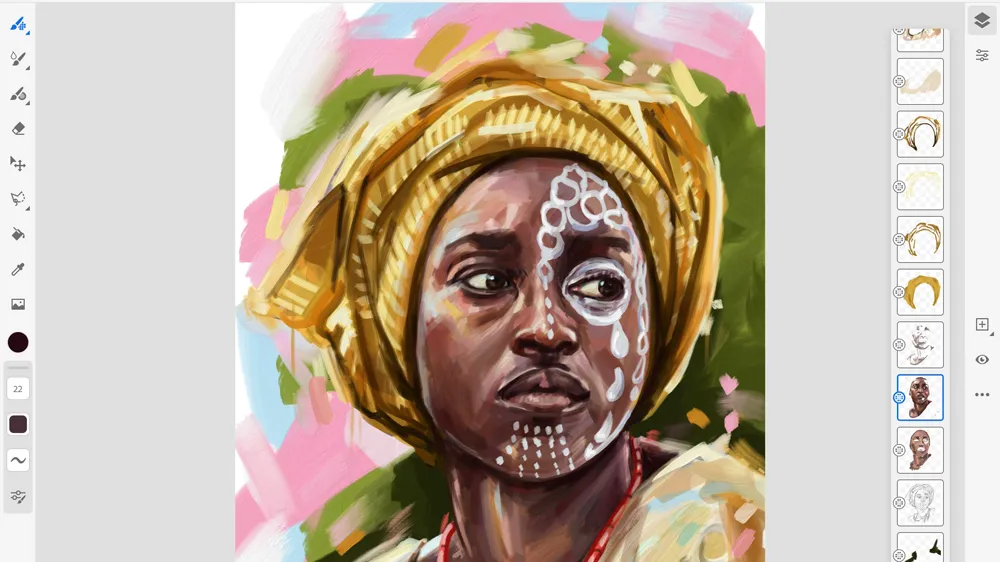
Adobe Fresco is Adobe’s dedicated drawing and painting app for iPad, blending raster, vector, and live brushes to give you a flexible creative tool for sketching, illustration, and mixed‑media work. With features like Live Brushes that mimic traditional media and a vast pixel brush library, it covers a broad range of creative styles.
In 2025 and into 2026, Fresco has gained several useful iPad‑specific updates: new basic-shape tools and the ability to load selections from vector content; a Pose tool for repositioning strokes or whole illustrations; a redesigned, unified brush panel to streamline workflow; and symmetry and quick‑start tiles to get projects rolling faster.
One of Fresco’s biggest shifts is that it’s now completely free on iPad, with all premium features available without a subscription, which is a major change from the old freemium model and a competitive edge against paid rivals.
Compared with Procreate (above), Fresco still feels a bit less polished in the interface, and some artists find brush navigation or tool layout less intuitive. But if you’re tied into Adobe’s ecosystem or you want cloud sync, vector support, and ongoing feature growth without a subscription cost, it’s a strong contender in our best iPad design apps list.
Read more: Adobe Fresco review
05. Affinity Designer 2 for iPad

Built on the same back end as its award-winning desktop version, the Illustrator alternative, Affinity Designer for iPad, is a vector drawing program that's fully optimised for iOS, including Touch controls and Apple Pencil support. In our testing, we appreciated that it can support huge multi-artboard canvases with as many layers as you want, and that you can zoom to over 1,000,000 %. We also like how the UI has been adapted to suit the iPad.
Affinity Designer supports both CMYK and RGB, and includes a full Pantone library in the colour swatch panel, making it ideal for creating both digital and printed art. You can export to a range of formats, including JPG, PNG, PDF, and SVG, and there are over 100 brushes available in styles such as paints, pencils, inks, pastels, and gouaches. In short, this is one of the few drawing apps for iPad that's squarely targeted at the professional market.
New in 2025–26: Affinity Designer 2 for iPad now includes enhancements to the Pencil and Pen tools, improved Node tool behavior, and instant color application when using the color picker. It also adds Vector Warp for non-destructive distortions, the Shape Builder and Knife tools for flexible shape editing, advanced view modes such as X-ray and live pattern previews, and improved grids and guides. The app is now free to download and use, with all professional features included.
Read more: Affinity Designer for iPad review
06. ArtRage Vitae

ArtRage Vitae is one of my favourites and always a go-to, despite its age and initial simplicity. It's built on one of the longest-running digital painting simulations, making it an excellent choice for iPad artists who want the tactile feel of real oils and watercolours. Brushes behave realistically, allowing you to load paint, blend colours on the canvas, and create rich, natural textures.
In 2025–26, the app has added larger canvases and improved colour-picking tools, including complementary colour support, giving you more control over mixing and shading.
The range of tools is extensive, from brushes and pencils to crayons, rollers, and pastels, and the variety of canvas and paper presets adds subtle texture beneath your strokes. New features let you save custom colour-blending behaviours and create seamless, tiled textures, expanding your creative possibilities.
The interface remains clean and intuitive, hiding advanced functions behind sliders and menus so the canvas stays the focus. Recent updates have also improved reliability and document-saving speed, and introduced collaborative painting through PaintLink, letting you share colour palettes or even paint alongside others.
While apps like Rebelle may offer a closer match to traditional media, ArtRage Vitae stands out on iPad for its combination of realism, flexibility, and workflow enhancements, making it the next best thing to natural media painting on a tablet.
Read more: Artrage Vitae review
07. Tayasui Sketches

Tayasui Sketches is one of those rare drawing apps that balances simplicity with sophistication, making it an absolute delight for artists of all levels. The interface is clean and distraction-free, letting your creativity take centre stage without being bogged down by cluttered menus. Its brush engine is impressively tactile, offering a range of pencils, inks, and watercolours that respond intuitively to pressure and tilt.
One standout feature is the app’s layering system, which is simple enough for beginners to grasp, yet flexible enough to support more intricate compositions. Colour selection is a joy, with smooth blending and opacity control that feels almost like working with real paint.
Extras like rulers, symmetry tools, and customisable brushes expand the creative possibilities without overwhelming the interface. Whether you’re sketching quick ideas on the go or polishing a detailed illustration, Tayasui Sketches proves that elegance and power can coexist in a single, approachable app.
08. ArtStudio Pro

If you find Procreate to be limiting but don't want a costly subscription to Photoshop (or need all its image manipulation tools), Artstudio Pro for iPad hits an appealing sweet spot somewhere between the two.
This is the successor to ArtStudio – a legacy version of which is still available for $4.99/£4.99. The new version has been optimised for Apple Pencil, and is significantly faster than ArtStudio.
Its big advantage is the inclusion of more of the kind of features that you'd find in desktop drawing software but while keeping the interface nice and streamlined for tablet use. There are non-destructive adjustment layers with lots of blending modes, group masks, a gradient tool, over 100 built-in brushes and the ability to import all types of formats, including ABL brushes. Some things, like brush settings, are less intuitive than Procreate, but brush sizes are less restrictive.
There's a free version but access to all of the features requires a monthly subscription from $6.99 or purchase of a lifetime licence for $29.99. That makes it more expensive than Procreate, but cheaper than Photoshop in the long run.
For specific styles
09. Heavy Paint

If, like me, you’ve been switching between Procreate and other iPad painting apps looking for something that feels different, Heavy Paint might be the change you need. It doesn’t try to mimic a traditional painting process; it embraces a bold, digital aesthetic where texture, colour, and stylised brushwork are part of the experience.
The toolset – fan brushes, colour jitter sliders, rake and line blend tools – makes it easy to block in shapes and add vibrant character. It’s intuitive, fast, and lets you rough out a scene in minutes without losing control, which is unusual for an iPad painting app.
In 2025, Heavy Paint received updates that polished the interface, improved autosave, and fixed stability issues. These changes make the app smoother and more reliable for extended painting sessions. Unlike other painting apps on this list, Heavy Paint is not about realism; it’s about speed, expression, and enjoying a digital playground that feels refreshingly different from the usual iPad options.
Read my Heavy Paint hands-on for more details.
10. iPastels

No digital application and tablet screen will give you the real feel of working with pastels and charcoal, but this drawing app for iPad is not looking to replace feel – it's designed to mimic the effect (with the advantage that you don't get messy fingers).
It is impressive how well the app replicates some aspects of pastel drawing, including soft pastels, oil pastels, pastel pencils, and realistic colour blending using your finger on the screen just like you would on paper. One downside is that you have to stop drawing when you want to adjust the size and pressure of your tool, but there are plus sides – including the ability to correct mistakes quickly and simply.
For that reason and more, iPastels is a great app to use if you want to try out compositions before beginning a real painting – or just for a bit of fun. It has Apple Pencil support, and the upgrade to Pro features costs $4.99/£4.99.
11. Zen Brush 2

Zen Brush 2 is one of the drawing apps for iPad that emulates the feel of drawing with traditional Japanese calligraphy brushes. Our testing found it has a smooth and fluent drawing engine, and although our Zen Brush review describes its limited features, we also know it is par for the course with such a narrow usage and that's okay.
Zen Brush 2 has a gallery feature that enables you to save your work in progress, as well as a lovely ink dispersion effect to give your drawings an added feeling of depth. There's support for pressure-sensitive styluses, including Apple Pencil, and best of all you're no longer restricted to black ink – you can use red ink too.
12. Concepts

Drawing apps aren't only for digital art and illustration. Concepts is designed not for creating finished artwork but for brainstorming and iterating, which makes it a handy tool for architects, product designers, creative directors, technical drawing and visual thinkers in general.
You can sketch plans and whiteboard ideas, make notes and mindmaps and draw storyboards and product sketches on an infinite canvas with a simple, streamlined interface. There are organic brushes, a fluid and responsive vector drawing engine, and intuitive tools.
The infinite canvas makes it great for notetaking and annotating or for testing out multiple ideas for compositions to choose which to use before working it up into a finished piece in an app like Procreate.
13. Comic Draw

While some painting and drawing apps cover a broad range of abilities and creative disciplines, Comic Draw is single-minded in its purpose. Comic artists are its target, and it's very effective for this use. The app features a tool that enables you to lay out the panels on your page, guides to help you keep a perfect perspective and layers to enable you to build your drawings.
You'll also find a digital sketchpad for experimenting with your concepts, and an inking and colouring interface to help you finish your design with various brushes. Comic Draw provides a lettering suite made up of different typefaces, balloons and design tools to add the all-important words, and you can add as many pages as you want to make everything from a comic strip to a full-length book. There's a free trial available before you buy (full access costs $9.99/£9.99).
14. Clip Studio Paint

Clip Studio Paint is another full-featured desktop paint app that's now on the iPad. It's particularly popular for drawing comics and manga, but it can also be used to create any kind of digital art. Alongside ArtRage Vitae (above), it's one of the few drawing apps for iPad that brings the feel of traditional drawing to the digital space.
This app comes packed with drawing tools such as pencils, markers, calligraphy pens and air brushes. And because the drawing engine works so well with the Apple Pencil, you'll have a full range of pressure-sensitive dynamics to get your linework perfect. Another bonus is when you sign up for Clip Studio Paint subscription, you get three months free. Check out our list of the best Clip Studio Paint tutorials here.
15. MediBang Paint for iPad

If you're looking at getting into comic and manga art and want a free alternative to Clip Studio Paint, MediBang is well worth checking out. It has many similar features but lacks some tools and the extensive brush library.
When we reviewed it, we found Medibang to be an easy-to-use program. It was easy to work in layers and add styles, the and the handy brush editor was a very welcome tool in a free program.
Read more: Medibang review.
16. Brushes Redux

Legendary artist David Hockney has been spotted using the Brushes app when creating art on the iPad. It's an oldie but a goodie, designed specifically for Apple's tablet and now with the 'Redux' suffix – and it's free and open-source.
Using a basic toolbar at the bottom of the screen, you can bring up a colour wheel/picker, work with layers and switch between various brushes. Best of all, perhaps, Brushes is fast and responsive to the touch so it's easy to work quickly. A useful feature is the ability to record each brush stroke, enabling you to play back exactly how you created each piece of iPad art via the Brushes viewer.
17. Assembly

If you're interested in graphic design on an iPad and don't want to do the drawing yourself, we found Assembly to be a handy tool for creating create detailed vector drawings, icons, logos, scenes and characters without all that fiddly mucking about with vectors and Bézier curves. Rather than painstakingly drawing everything out yourself, you can choose from an enormous selection of ready-made shapes and stick them together to create your vector masterpiece.
You can layer, stack and position shapes however you want with this entry on our drawing apps for iPad list, and even create your own building blocks by cutting out, combining and intersecting existing shapes. If you need to prototype in a hurry, it's an ideal tool for getting professional results fast.
18. AstroPad Studio

This isn't an iPad drawing app as such, but an accessory than can allow you to use your iPad like a graphics tablet. An iPad is great for drawing on, but some people might prefer to see their work on a larger screen. For that, you can use Sidecar to view your iPad screen on your MacBook or iMac, but that's not the ideal solution if you want to use your iPad as a graphics tablet. AstroPad Studio solves this by letting you use your iPad as a graphics tablet, drawing on the touchscreen with your Apple Pencil while you look at the results on your Mac.
You can connect via WiFi or USB, and the app allows you to customise gesture shortcuts and pressure curves. The sidebar shortcuts automatically adapt to match whatever Mac app you’re working in, and there's also keyboard support. If you want to use a PC, see our guide to how to use an iPad as a drawing tablet with a PC.
For kids
19. ArtWorkout

Some of the best drawing apps for iPad are great if you're proficient at drawing, but not necessarily for newcomers. Learning to draw on a tablet can be less intuitive than learning to draw the traditional way on paper, but ArtWorkout is a nice app for learning how to draw digitally. It has over 500 step-by-step lessons and it analyses your accuracy and stroke quality (without being too critical!).
It covers different forms of drawing, from doodles to sketching, and you can choose your skill level, making it suitable for complete beginners and up. It's free to download, but the premium plan costs $7.99 a month.
20. Lake: Colouring Books and Journal

This one's not a drawing app for iPad exactly, but a colouring app – perfect for when you want to just turn off and relax or for anyone just getting the feel for using the Apple Pencil to draw digitally. Also available for the iPhone, it offers colouring book sheets in all kinds of styles from artists all over the world. It has a colour wheel where you select the colour you want to use, making it all very clean and intuitive to use. There's also optional audio, so if you use the paint brush, you'll hear brush sounds, use the spray paint and you hear spray sounds. We found it very soothing to use.
There's an option to automatically stay in the lines if you don't want to worry about being too precise, while other options allow you to get a bit more creative than simply colouring in with block colour, allowing you to use shading and other effects. The free version gives you up to nine pages a day to colour. For $10 a month you can get as many as your like, more colour variations and the option to work with a blank canvas.
21. Drawing Desk

We already mentioned ArtWorkout as an option for practising and learning to draw in iPad. But if you want a little more hand-holding, Drawing Desk is an appealing option that offers easy to follow lessons. It even has an agreement with Marvel so you can follow tutorials to work on characters like Spider-Man (see our own Marvel comic art tips.)
There are more than 50 tutorials to choose from, and the lessons take a simple step-by-step approach showing how to build a character, organise a pose, draw broad-stroke lines and then refine, colour and shade. Guide lines appear on the screen so you can follow along, but it still allows some freedom: snapping lines to keep everything tight, but the sketching phase is loose, enabling you add some personality while the Guide Me feature offers help on how to use layers and settings.
Experienced artists will find all this too much like hand-holding, but we think it's an accessible introduction for beginners and particularly children, helping to demystify digital drawing in an attractive way while also allowing some room to experiment. The free version is quite limited; you'll need to pay for features such as shading.
See our Drawing Desk review for more details.
22. SketchClub

Sketch Club has a great set of tools for creating beautiful digital art, which is why it's a valuable addition to our drawing apps for iPad list. The app has a unique set of flexible digital brushes (and more can be made), pens, vector tools, old school pixel art, and fun procedural tools.
Sketch Club has an uncluttered user interface, with lots of settings to customise the app to your own unique preferences. A particularly great feature of this app is the integrated online community. Here you can upload your sketches to let others rate and comment on your work, as well as enter daily challenges and fun weekly competitions.
Mindfulness art apps
23. Flowspace - Drawing Meditation

Flowspace takes digital drawing beyond mere creation, turning each session into a mindful pause. Its pared-back interface keeps distractions at bay, letting you concentrate on both your strokes and your breathing.
The app guides you through exercises designed for slow, deliberate drawing, transforming even brief moments at the canvas into a meditative ritual. Brush options are simple but versatile, producing smooth, flowing lines that make every sketch feel complete.
What makes Flowspace distinctive is its seamless blend of art and mindfulness. Each session has a clear purpose: reducing stress, sharpening focus, or simply encouraging presence, making it suitable for newcomers and seasoned artists alike. Whether it’s a calm start to your morning or a reset after a busy day, Flowspace proves that digital drawing can be more than just creative output.
24. Lines of Zen

Lines of Zen strips drawing back to its essentials, creating a space for calm and focus on both iPad and iPhone. The premise is simple: trace guided lines, curves, or shapes while syncing with your breath. Yet the results feel far from basic, forming patterns that are visually harmonious and quietly meditative.
The interface is deliberately pared down, keeping distractions to a minimum so you can fully engage with the act of drawing. Adjustable stroke speeds, subtle background sounds, and soft visual prompts deepen the sense of immersion, letting the experience unfold at a natural rhythm.
Repetition and gentle focus lie at the heart of the app, encouraging mindfulness while delivering something concrete and satisfying. For anyone looking to step away from constant screen stimuli, Lines of Zen proves that meditative creativity doesn’t rely on complex tools; just patience, presence, and the simple act of letting your hand guide your mind.
25. Art Break: Antistress Drawing

Art Break is built for creators short on time but in need of a mental reset. The app zeroes in on brief, guided drawing exercises that take just five to ten minutes, offering a quick way to unwind while keeping your creativity active.
Its interface is stripped back and intuitive, so you can dive straight into sketching without sifting through menus or tutorials. Brushes are straightforward yet expressive, making even tiny doodles feel complete.
What sets Art Break apart is its focus on rhythm. The pacing encourages repeated, mindful strokes, helping calm a busy mind while producing genuinely satisfying visuals. Gentle colour schemes reinforce the sense of calm, turning every mini-session into a quiet, restorative ritual.
Whether it’s a pause between meetings or a wind-down before bed, Art Break proves that even short bursts of drawing can sharpen focus and leave you feeling refreshed.
Also consider
How to choose the best drawing app for iPad
The best drawing app for iPad for you will depend on your needs, the type of art you want to create and your budget. Apps like Adobe Illustrator and Photoshop and Affinity Designer provide a broad range of industry-standard tools and are great options if you need to create vector art for multiple uses, including graphic design.
However, if you don't need vector tools and you're more interested in digital sketching and painting for character art or concept art, you may find a drawing app like Procreate to be more intuitive while offering all the brush tools you need. In terms of price, full access to Adobe's apps requires a monthly subscription, which might only be worth it if you're also using the desktop versions of the software, or if you plan to use other Adobe app and go for the Creative Cloud all-apps package.
Many other drawing apps for iPad, including Procreate, have such reasonable one-off costs that it's worth trying them first to see if they meet all of your needs.

How we tested the best drawing apps for iPad
All of the iPad drawing apps in this list have been tested either by our own editorial team, freelance contributors or the many digital artists who contribute tutorials and features to the website.
To test software, we run standard performance tests, we use each app in hands-on tests using real-world workflows. When spend several weeks with each program in order to use the different tools and features for creating various types of art, illustration and graphic design. We assess the power and flexibility of the tools, the usability of the interface and how the software performs on different devices.
We compare our findings with our experience in other programs to evaluate how each package compares with the competition, and we consider how much value for money is provided. Finally, we also take feedback from artists who contribute reviews and tutorials to Creative Bloq and to our sister magazine ImagineFX since these are the professionals who use the software day in and day out. You can find more general information on our 'How we test software' page.
FAQs
Is the iPad good for drawing apps?
There are plenty of dedicated drawing tablets on the market, but the experience on the iPad is now so good that many artists use this as their digital art tool of choice. The Apple Pencil Pro has several features designed to improve workflows, including a barrel roll feature and pinch gesture to help quickly change tools and brush size.
With features like hover, palm rejection and tilt pressure sensitivity, it's a nice stylus to use for drawing. The iPad also has the benefit that it can serve as an all-round device for general browsing, media and much more, saving you from having to buy a separate device for drawing.
That said, the 'slippy' hard surface feel of the display on most iPads can feel less paper-like and thus less natural to draw on compared to that of pen tablets and pen displays designed specifically for drawing. Some of the best iPad screen protectors provide a solution for this, and the iPad Pro now has the option of a nano-textured glass screen, although it's slightly more expensive.
If you'd prefer to create digital art on a desktop, see our pick of the best digital art software.
Which iPad should I use for drawing apps?
All of the most recent iPad generations support one of the Apple Pencils, so you can use the drawing apps above on any iPad.
However, the standard iPad, including the new 2025 iPad, only supports Apple Pencil 1. Recent Pros, Airs and the most recent mini support Apple Pencil Pro, which has some distinct advantages for drawing (see our comparison of Apple Pencils).
Do I need an Apple Pencil to use the best drawing apps for iPad?
No, you don't need an Apple pencil to use drawing apps on an iPad – see our pick of the best Apple Pencil alternatives for other options. However, we do rate the Apple Pencil Pro as the best iPad stylus for artists overall.
It is more expensive than some other options, but we find it offers the best experience for drawing while also providing workflow improvements thanks to its range of mechanisms for accessing shortcuts, such as the barrel roll feature to change brush sizes and pinch gesture to change tools.